

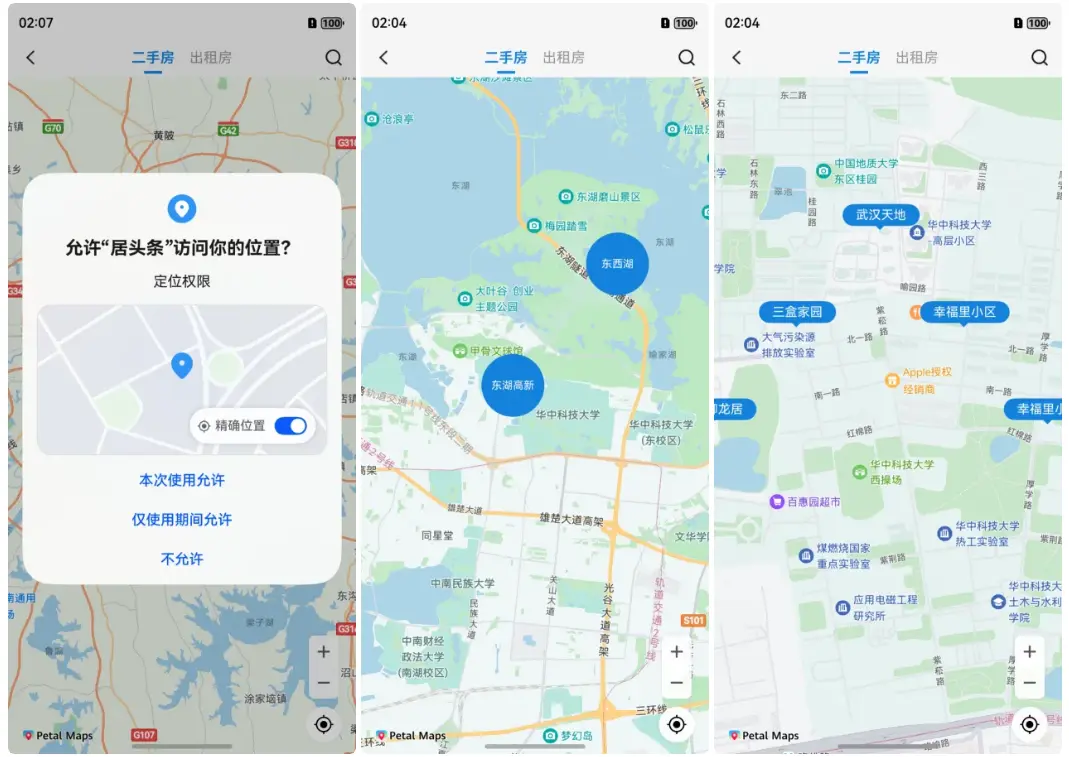
常用的地圖找房功能,是在地圖上添加區域、商圈、房源等一些自定義 marker,然後配上自己應用的一些篩選邏輯構成,在這裏使用鴻蒙 ArkUI 簡單實現下怎麼添加區域/商圈、房源等 Marker.
1、開啓地圖服務
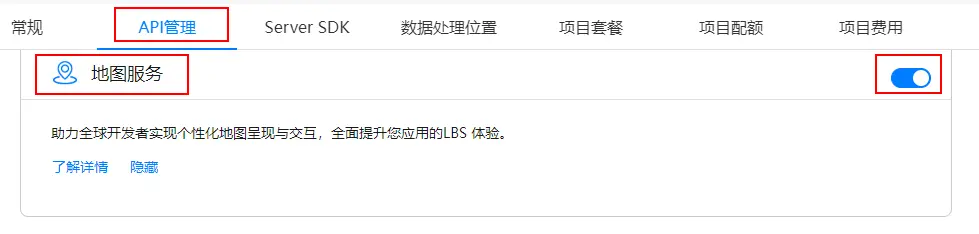
在華為開發者官網,註冊應用,然後在我的項目-我的應用-ApI管理中開啓地圖服務Map Kit;
2、地圖相關配置
在工程中entry模塊的module.json5文件中配置client_id,client_id可以在項目設置 > 常規 > 應用中找到,這裏可能需要配置公鑰指紋,具體可以參考開發者官網。
"module": {
  "name": "xxxx",
  "type": "entry",
  "description": "xxxx",
  "mainElement": "xxxx",
  "deviceTypes": [
    'phone',
  'tablet'
  ],
  "pages": "xxxx",
  "abilities": [],
  "metadata": [
    {
      "name": "client_id",
      "value": "xxxxxx"  // 配置為獲取的Client ID
    }
  ]
}
3、創建地圖
使用MapComponent組件創建地圖,需要傳遞兩個參數mapOptions和mapCallback,需要重寫onPageShow和onPageHide兩個生命週期方法,用來顯示和隱藏地圖。如果地圖不顯示的話,可以參考官網的地圖不顯示。
MapComponent(mapOptions: mapCommon.MapOptions, mapCallback: AsyncCallback<map.MapComponentController>)

// 地圖初始化參數,設置地圖中心點座標及層級
    this.mapOptions = {
      position: {
        target: {
          latitude: 39.9,
          longitude: 116.4
        },
        zoom: 10
      }
    };

    // 地圖初始化的回調
    this.callback = async (err, mapController) => {
      if (!err) {
        // 獲取地圖的控制器類,用來操作地圖
        this.mapController = mapController;
        this.mapEventManager = this.mapController.getEventManager();
        let callback = () => {
          console.info(this.TAG, `on-mapLoad`);
        }
        this.mapEventManager.on("mapLoad", callback);
      }
    };
  }

 // 頁面每次顯示時觸發一次,包括路由過程、應用進入前台等場景,僅@Entry裝飾的自定義組件生效
  onPageShow(): void {
    // 將地圖切換到前台
    if (this.mapController) {
      this.mapController.show();
    }
  }

  // 頁面每次隱藏時觸發一次,包括路由過程、應用進入後台等場景,僅@Entry裝飾的自定義組件生效
  onPageHide(): void {
    // 將地圖切換到後台
    if (this.mapController) {
      this.mapController.hide();
    }
  }

  build() {
    Stack() {
      // 調用MapComponent組件初始化地圖
      MapComponent({ mapOptions: this.mapOptions, mapCallback: this.callback }).width('100%').height('100%');
    }.height('100%')
  }
4、地圖上顯示我的位置圖標
需要先動態申請定位權限,獲取具體定位座標後,通過地圖操作類mapController調用setMyLocation方法設置定位座標,animateCamera方法移動地圖到定位座標位置,可以設置縮放等級,這樣就可以在地圖上顯示一個位置圖標;
static LocationPermissions: Array<Permissions> =
    ['ohos.permission.LOCATION', 'ohos.permission.APPROXIMATELY_LOCATION'];

//開始定位
  startLocation() {
    //申請定位權限
    AgentUtil.requestPermissions(AgentUtil.LocationPermissions, async () => {
      //獲取到定位權限
      // 啓用我的位置圖層,mapController為地圖操作類對象,獲取方式詳見顯示地圖章節
      this.mapController?.setMyLocationEnabled(true);
      // 啓用我的位置按鈕
      this.mapController?.setMyLocationControlsEnabled(true);

      // 獲取用户位置座標
      let location = await geoLocationManager.getCurrentLocation()
      // 轉換經緯度座標
      // let wgs84LatLng = AgentUtil.wgs84LatLng(location.latitude, location.longitude)
      // location.latitude = wgs84LatLng.latitude
      // location.longitude = wgs84LatLng.longitude
      // 設置用户的位置
      this.mapController?.setMyLocation(location);

      setTimeout(() => {
        //移動地圖到目標位置
        this.mapController?.animateCamera(map.newLatLng(location, 15))
      }, 100)
    })
  }
5、監聽地圖停止移動
當地圖移動到定位座標後,可以通過mapController.on("cameraIdle", () => {})方法,監聽地圖停止移動,在回調中可以做後續展示 Marker的邏輯;這裏根據地圖縮放等級來區分展示區域或者樓盤,後續可以繼續完善,添加商圈層級,一級自己需要的業務邏輯。
this.mapEventManager.on("cameraIdle", () => {
          //地圖停止移動,可以執行一些操作
          let position = this.mapController?.getCameraPosition()
          let currentZoom = position?.zoom ?? 0
          if (currentZoom < 14) {
            //展示區域商圈
            this.addAreaMarkers()
          }else{
            //展示房源樓盤
            this.addHouseMarkers()

          }
        });
6、自定義 Marker
1. 自定義圓形 Marker
比如可以用來顯示區域和商圈,由於 Map Kit 中添加的 Marker的時候並不支持自定義樣式,只支持設置圖標 icon,所以這裏先使用 Build自定義組件,繪製出圓形 Marker:
@Builder
  BuilderMapCircularLabel(text: string, id: string) {
    Stack() {
      //繪製圓形背景
      Circle({ width: 70, height: 70 })
        .shadow({ radius: 8 })
        .fill($r("app.color.main_color"))
      Text(text)
        .fontSize(12)
        .fontColor($r("app.color.white"))
        .textAlign(TextAlign.Center)
        .padding({
          left: 4,
          right: 4,
        })
    }.id(id)
  }
2. 自定義房源展示 Marker
背景底部小三角,可以使用 Path 路徑繪製。
/**
   * 矩形帶小三角標的 marker 標註
   * @param text
   */
  @Builder
  BuilderMapRectLabel(text: string, id: string) {
    Column() {
      Text(text)
        .fontSize(14)
        .fontColor($r("app.color.white"))
        .backgroundColor($r("app.color.main_color"))
        .shadow({ radius: 5, color: $r("app.color.white") })
        .borderRadius(14)
        .padding({
          left: 15,
          right: 15,
          top: 4,
          bottom: 4
        })
      //根據路徑繪製小三角形
      Path()
        .width(12)
        .height(6)
        .commands('M0 0 L30 0 L15 15 Z')
        .fill($r("app.color.main_color"))
        .strokeWidth(0)
    }.id(id).alignItems(HorizontalAlign.Center)
  }
7、地圖上展示自定義 Marker
使用截屏類componentSnapshot,調用將自定義組件生成快照的方法createFromBuilder,在回調中獲取生成的PixelMap對象,將 PixelMap對象設置給 MarkerOptions Marker參數icon中,調用 addMarker 方法在地圖上生成 Marker點.
componentSnapshot.createFromBuilder(() => {
      //要生成圖片 PixelMap對象的自定義組件
      this.BuilderMapRectLabel(text, houseId)
    }, async (error, imagePixelMap) => {
      if (error) {
        LogUtil.debug("snapshot failure: " + JSON.stringify(error));
        return
      }

      let markerOptions: mapCommon.MarkerOptions = {
        position: latLng,
        icon: imagePixelMap, //生成 PixelMap後的自定義組件
        title: houseId,  //可以傳一些自定義參數,跟組件進行綁定,方便後續點擊進行操作
      }
      if (!this.rectMarkers.find(marker => marker.getTitle() == houseId)) {
        //如果marker集合不存在已添加的 marker,則添加marker
        let marker = await this.mapController?.addMarker(markerOptions)
        marker?.setClickable(true)
        if (marker) {
          this.rectMarkers.push(marker)
        }
      }
    })
8、監聽 Marker的點擊事件
使用 mapEventManager 的 mapEventManager.on("markerClick", () => {})方法來監聽 marker的點擊事件,在點擊事件回調中根據地圖層級可以處理點擊的業務邏輯,比如點擊進入地圖層級,展示樓盤 marker等。
this.mapEventManager.on("markerClick", (marker) => {
          if (marker.getTitle().length == 2) {
            //點擊區域商圈,進入房源層級,展示房源信息
            //移動地圖到目標位置
            this.mapController?.animateCamera(map.newLatLng({
              latitude: 30.513746,
              longitude: 114.403009
            }, 15))
          } else {
            //點擊房源,可以進行後續操作
            ToastUtil.showToast(marker?.getTitle())
          }
        })
總結以上就是鴻蒙 ArkUI實現地圖找房的基本流程,具體細節可以根據自己的業務需求,實現自己想要的效果。目前地圖上的制定 marker 還是通過自定義組件生成圖片,來展示,當Marker比較多時,對性能可能有一定的影響,可以進一步優化,每次只展示當前屏幕內的 Marker圖,滑動移除屏幕外的 marker,同時記錄已經生成的 marker,避免每次都要重新生成 marker PixelMap對象。
