

一、安裝iTerm2
方式1官網下載:https://iterm2.com/downloads.html可視化安裝
方式2homebrew安裝:
$ brew cask install iterm2
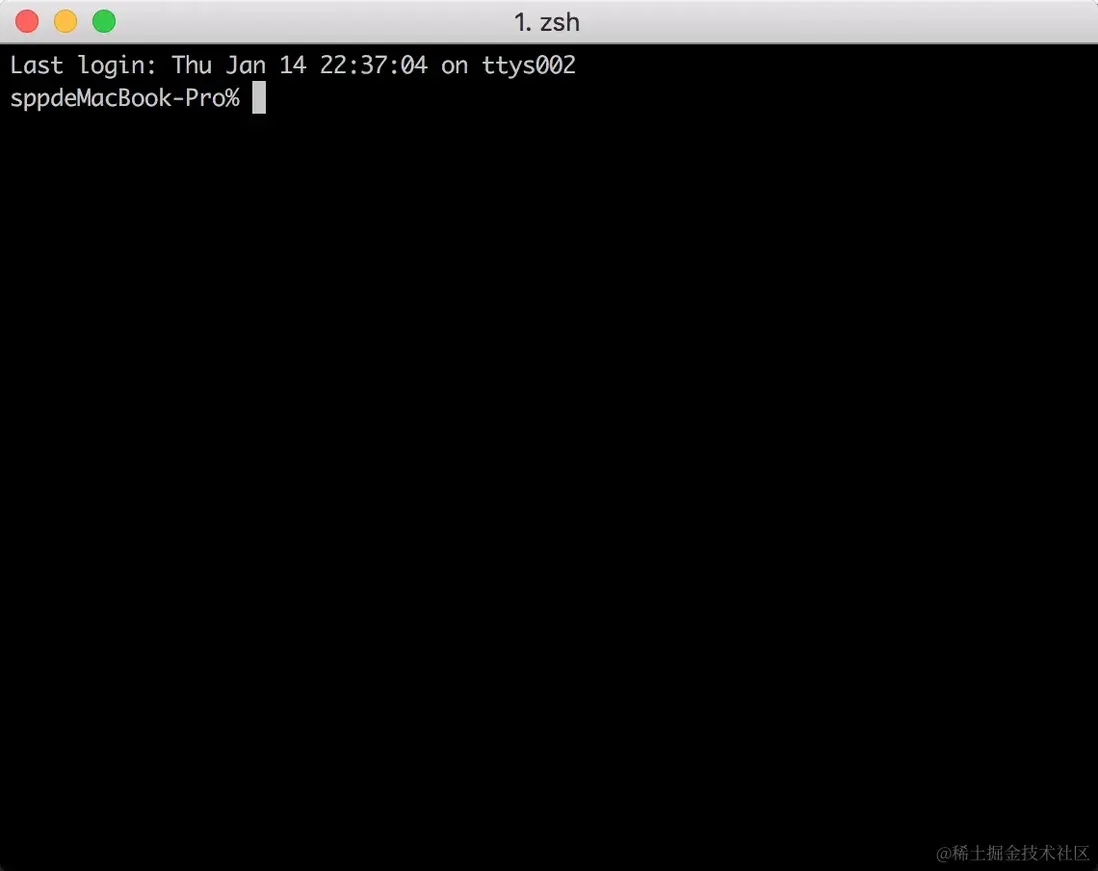
安裝完和自動終端差不多
二、配置iTerm2的主題
1、訪問 iTerm2 主題網站
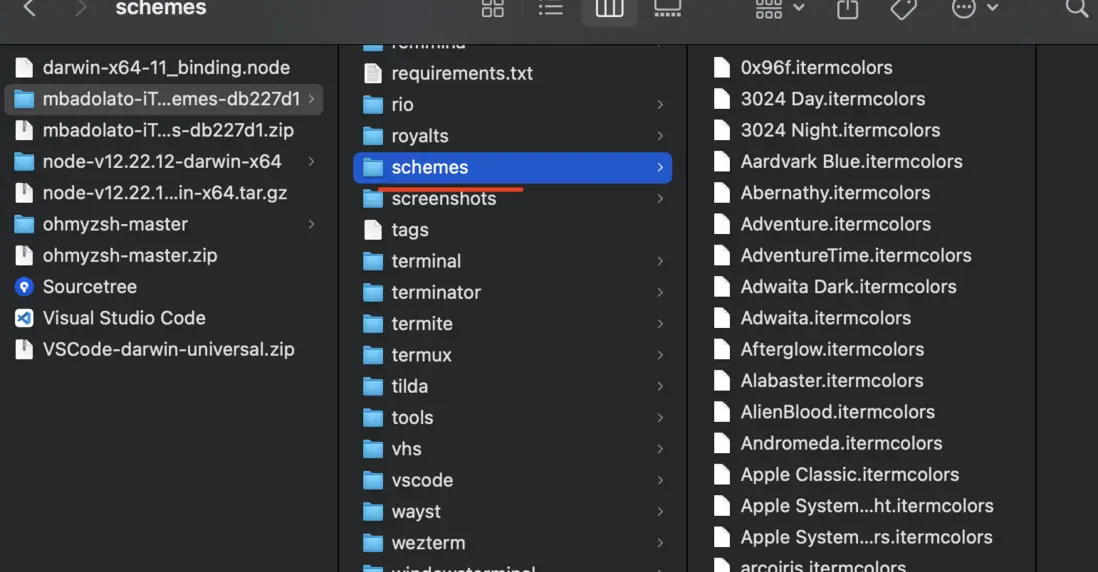
下載 zip 包並解壓至本地,找到 schemes 文件夾,裏面就是 iTerm2 的所有主題了
2、在item2中配置導入配色和主題
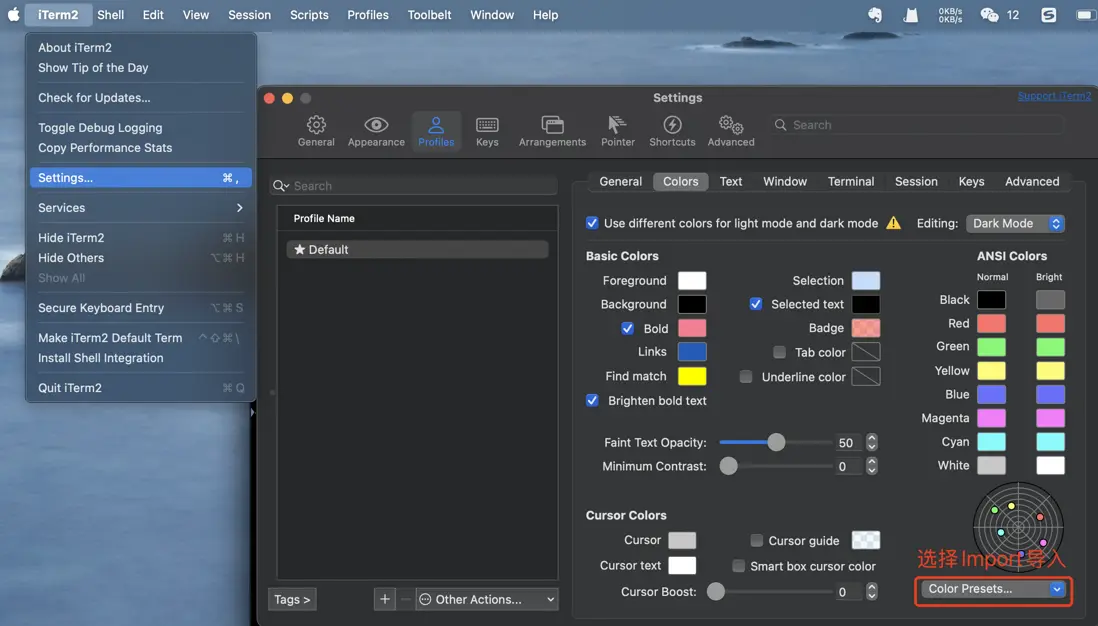
Profiles -> Colors -> Color Presets選擇Import選項找到schemes文件夾裏面的主題
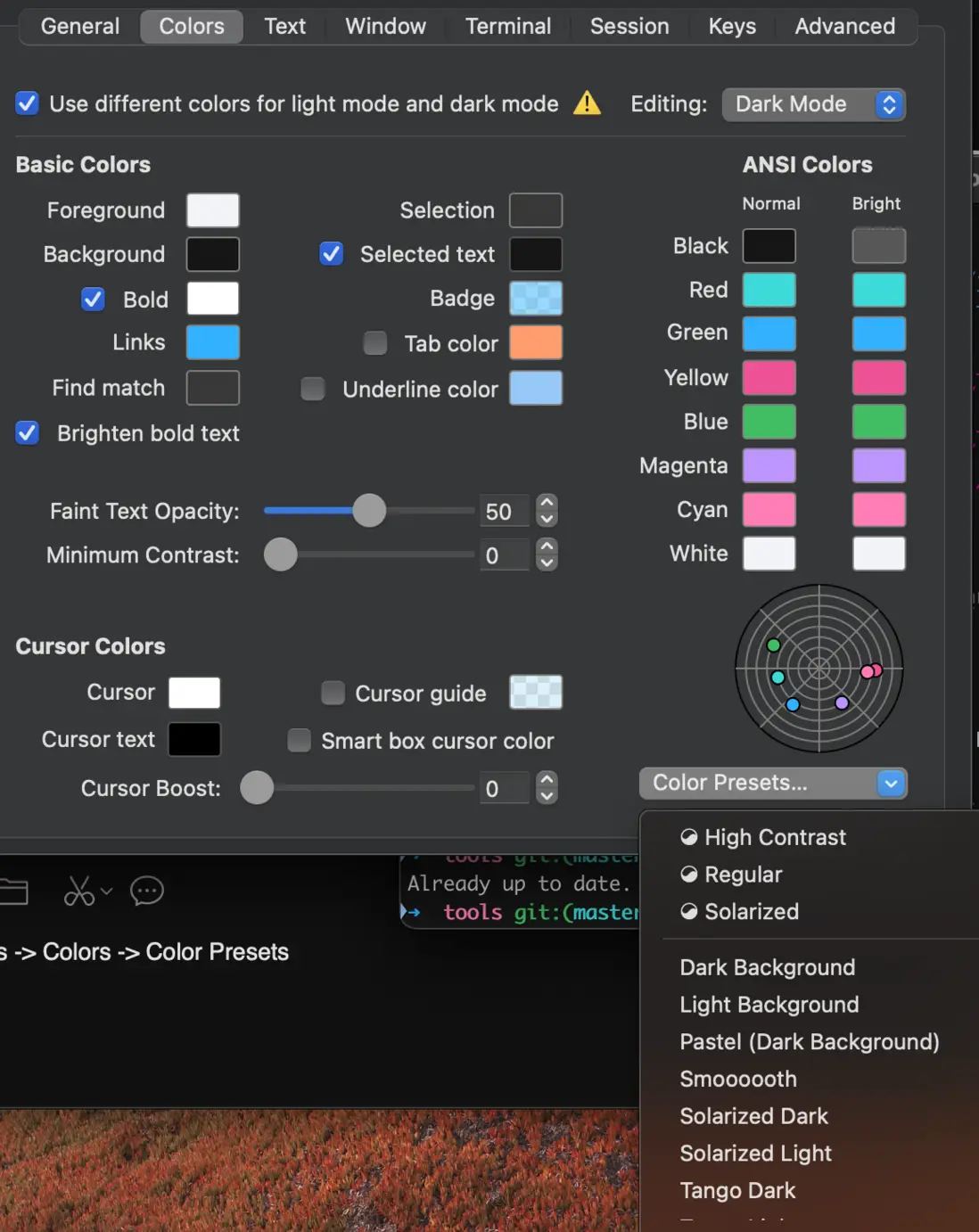
再次打開就有一堆主題了可選擇了
三、安裝Oh my Zsh
方式1、官網打開,點擊Install oh-my-zsh
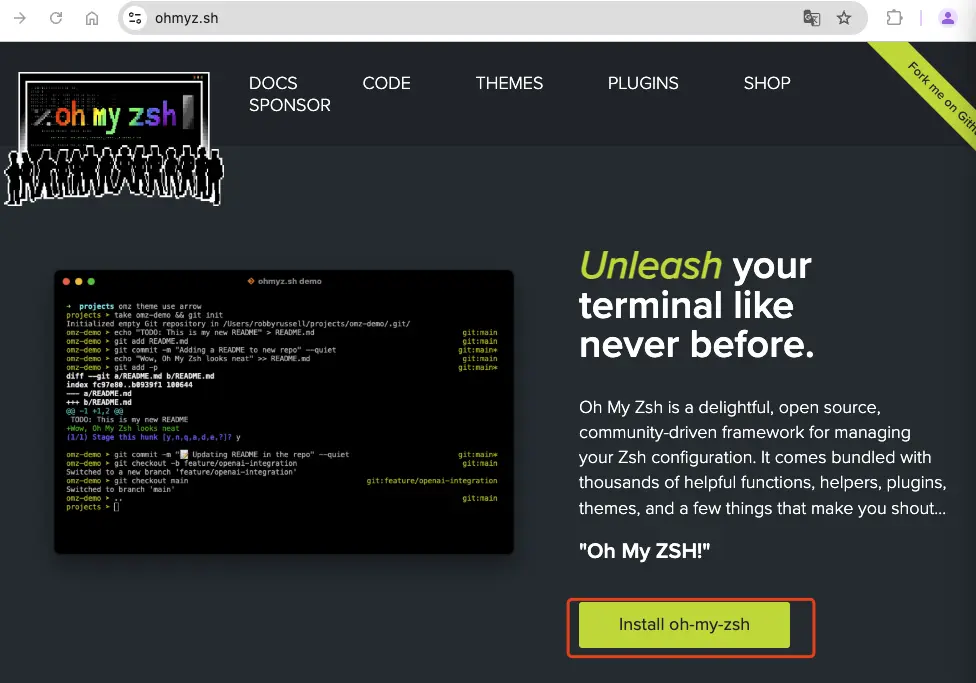
可以看到有兩種安裝方式,但都需要科學上網。
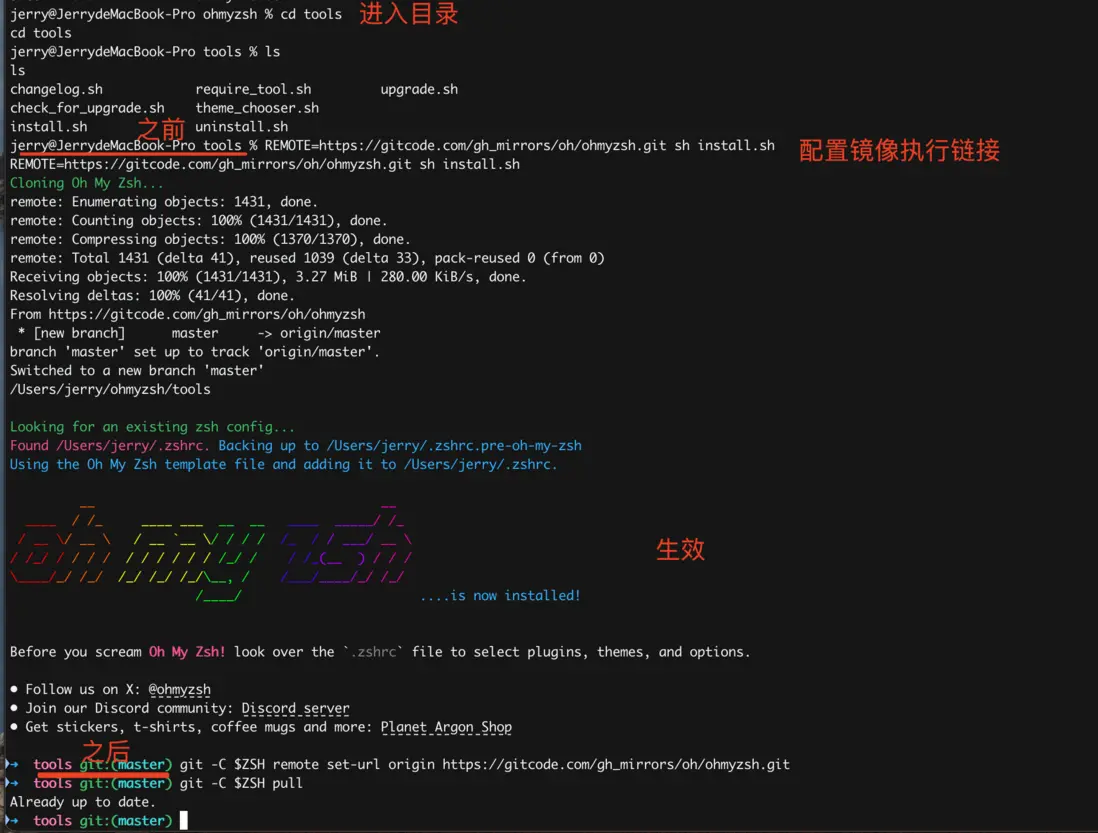
方式2、國內鏡像鏈接下載配置
//1、本地建好目錄準備存儲ohmyzsh的代碼倉庫

//2、下載國內鏡像的安裝包
git clone https://gitcode.com/gh_mirrors/oh/ohmyzsh.git

//3、進入本地倉庫裏面的tools目錄

//4、重點:修改執行鏡像路徑
REMOTE=https://gitcode.com/gh_mirrors/oh/ohmyzsh.git sh install.sh

//5、配置鏡像源
git -C $ZSH remote set-url origin https://gitcode.com/gh_mirrors/oh/ohmyzsh.git

git -C $ZSH pull
四、安裝Oh-my-Zsh插件
1、zsh-autosuggestions(需下載安裝):高亮顯示所有支持的命令
使用國內鏡像的下載安裝
git clone https://gitcode.com/gh_mirrors/zs/zsh-autosuggestions.git ${ZSH_CUSTOM:-~/.oh-my-zsh/custom}/plugins/zsh-autosuggestions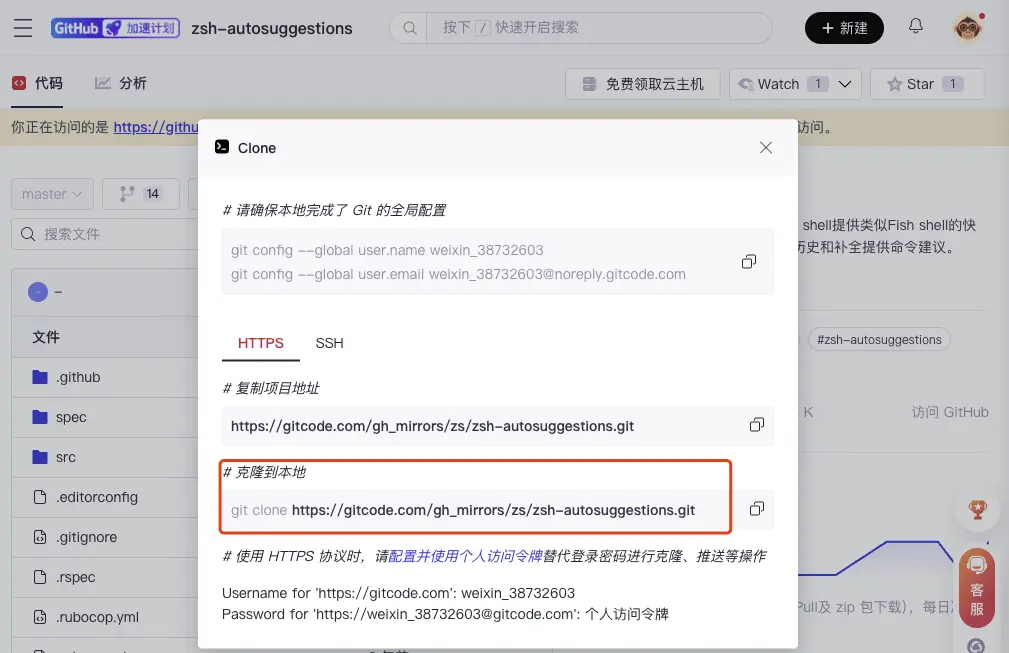
2、zsh-syntax-highlighting(需下載安裝):根據輸入的歷史命令進行智能提示
使用國內鏡像的下載安裝
git clone https://gitcode.com/gh_mirrors/zs/zsh-syntax-highlighting.git ${ZSH_CUSTOM:-~/.oh-my-zsh/custom}/plugins/zsh-syntax-highlighting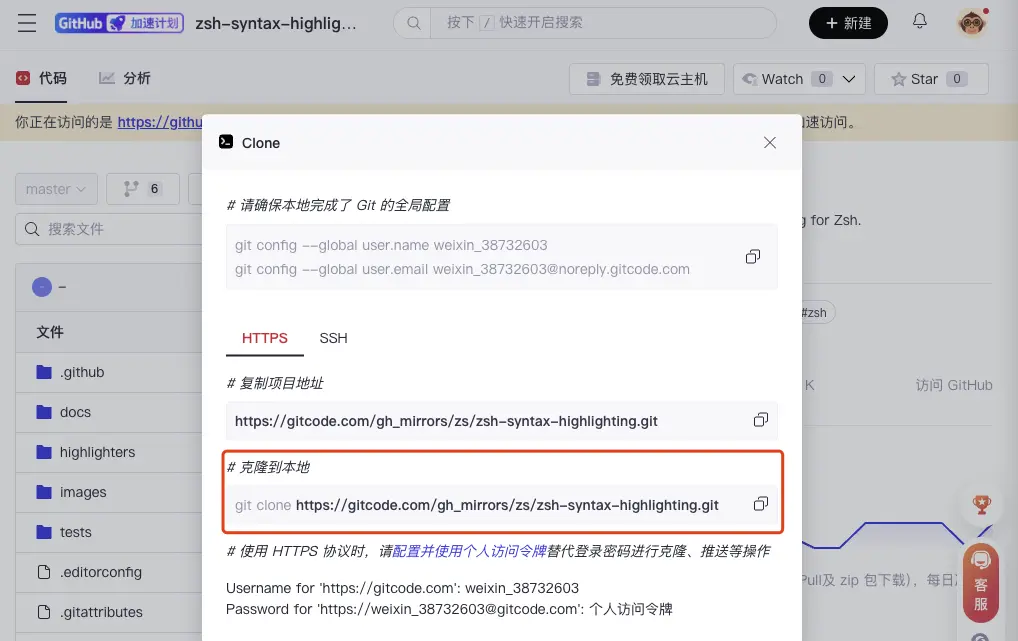
3、修改加入插件配置
//打開文件
vim ~/.zshrc

//在文件中加入插件
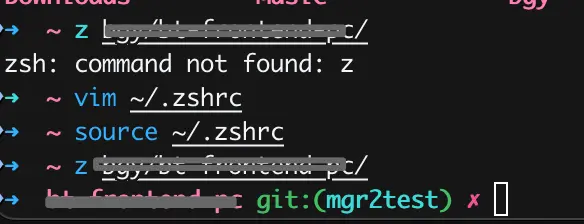
plugins=(git z zsh-autosuggestions zsh-syntax-highlighting)
//第一個z插件是自帶的,用於快速跳轉文件 可帶上

//wq退出文件編輯

//執行配置
source ~/.zshrc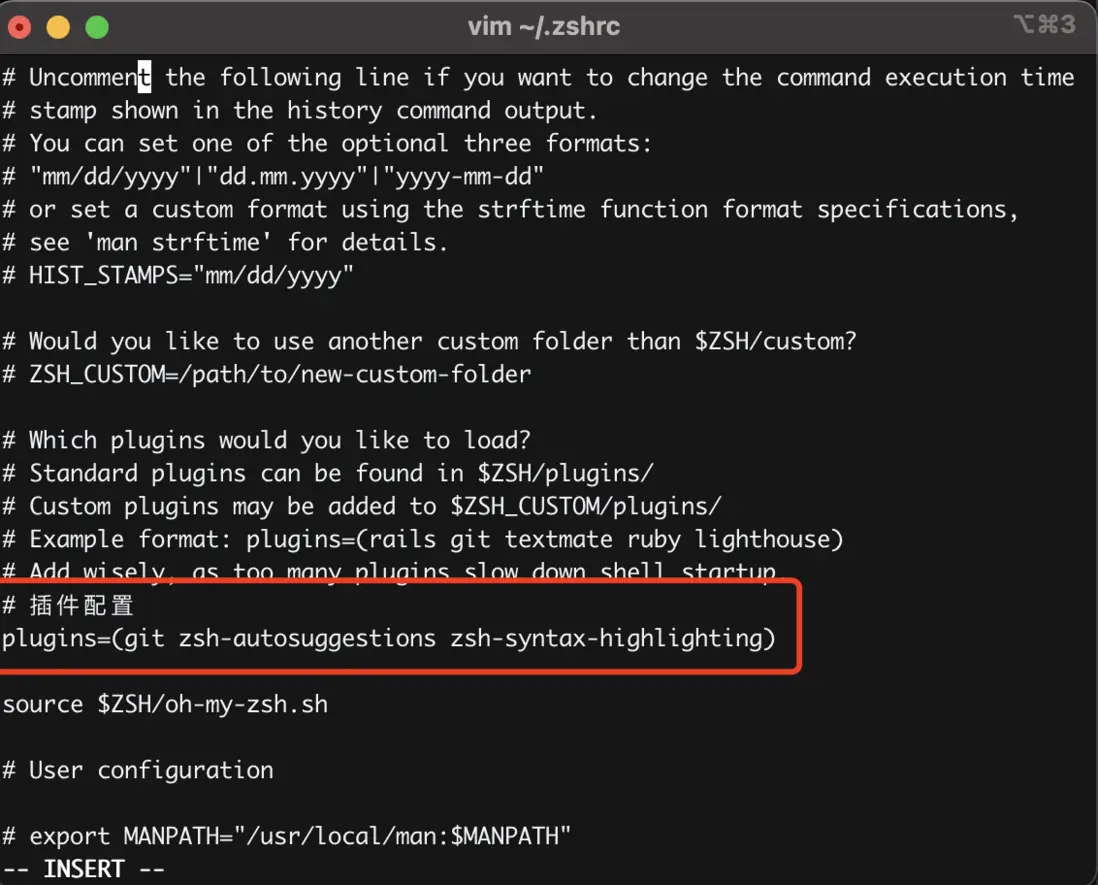
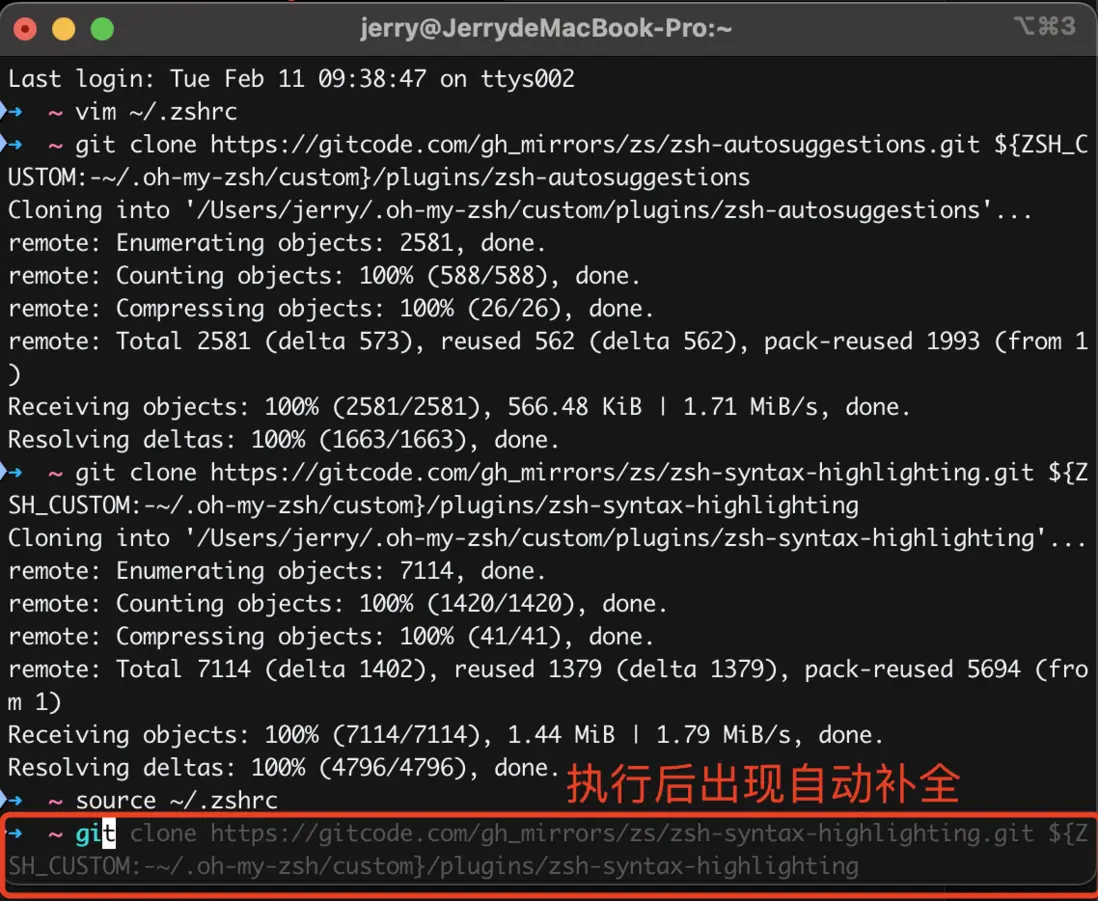
plugins帶上了z插件命令生效
資料:
1安裝:macOS必裝神器 - iTerm2 與 Oh My Zsh
2安裝:Mac中安裝OhMyZsh
3安裝:mac 安裝配置oh-my-zsh
4國內倉庫:ohmyzsh
5國內倉庫:插件zsh-syntax-highlighting
6國內倉庫:插件zsh-autosuggestions