

在日常辦公和自動化任務中,我們經常需要對 PDF 文件進行頁面級的編輯,例如插入空白頁、複製現有頁、導入其他文件的頁面或刪除不需要的頁面。使用 Python,你可以輕鬆實現這些操作,而無需依賴 Adobe Acrobat。
本文將通過幾個常見場景,演示如何使用 Python 操作 PDF 頁面,包括:
- 添加空白頁
- 導入其他 PDF 的頁面
- 刪除特定頁面
- 在文檔內部複製頁面
- 移動頁面到新位置
所有示例均基於 Free Spire.PDF for Python,你可以通過以下命令安裝該庫:
pip install spire.pdf.free1. 向 PDF 添加空白頁
from spire.pdf.common import *
from spire.pdf import *

document = PdfDocument()
document.LoadFromFile("G:/Documents/Sample53.pdf")

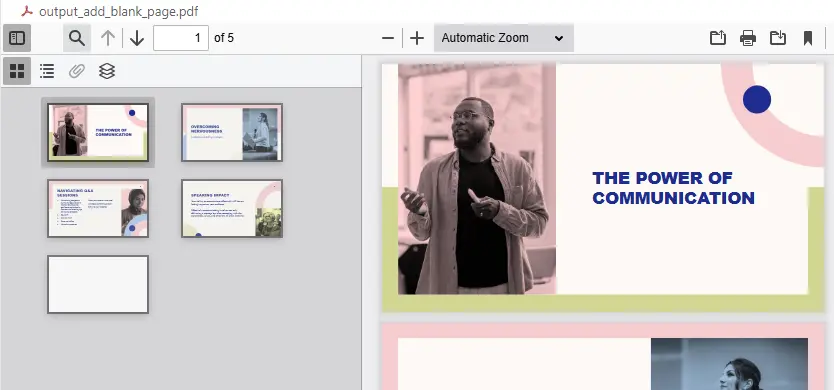
# 在文檔末尾添加一個新頁面
new_page = document.Pages.Add(document.Pages.get_Item(0).Size)  # 使用與第一頁相同的大小

# 可選:在新頁面上繪製文本內容
# text_element = PdfTextWidget("這是一個新添加的空白頁面", PdfFont(PdfFontFamily.Helvetica, 12))
# text_element.Draw(new_page, PointF(50, 50))

document.SaveToFile("output_add_blank_page.pdf", FileFormat.PDF)
document.Close()
print("空白頁面已添加。")説明:
document.Pages.Add()會在文檔末尾添加一個新頁面,並返回該頁面對象。- 若希望在指定位置插入頁面,可使用
document.Pages.Insert(index)。 - 通過
PdfTextWidget可在新頁面上繪製文本內容,用於添加標題或標註。
結果展示:
2. 從另一個 PDF 導入頁面
from spire.pdf.common import *
from spire.pdf import *

# 加載目標和源PDF文檔
target_document = PdfDocument()
target_document.LoadFromFile("G:/Documents/Sample53.pdf")

source_document = PdfDocument()
source_document.LoadFromFile("G:/Documents/Sample89.pdf")

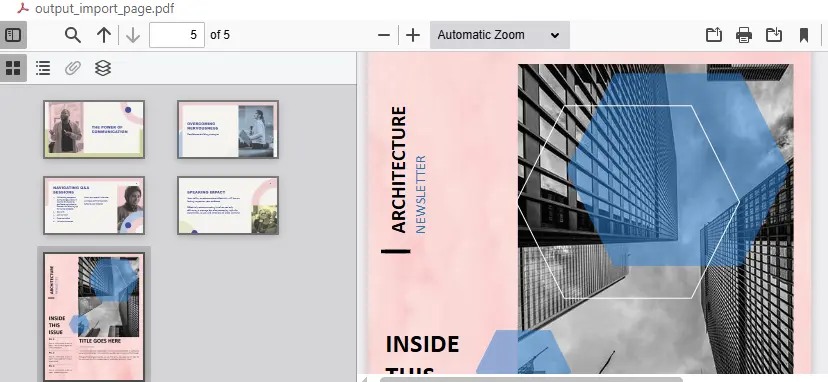
# 導入源文檔的第一頁到目標文檔的末尾
target_document.InsertPage(source_document, 0)

# 若要導入所有頁面,可使用循環
# for i in range(source_document.Pages.Count):
#     target_document.InsertPage(source_document, i)

target_document.SaveToFile("output_import_page.pdf", FileFormat.PDF)
target_document.Close()
source_document.Close()
print("頁面已從源文檔導入。")説明:
InsertPage(source_document, page_index)用於將指定頁從一個 PDF 插入到另一個 PDF。- 當源文檔包含多頁時,可遍歷其頁面進行批量導入。
- 這種方法非常適合將多個文件合併成一個完整文檔。
結果展示:
3. 刪除 PDF 中的頁面
from spire.pdf.common import *
from spire.pdf import *

document = PdfDocument()
document.LoadFromFile("input.pdf")

# 刪除第二頁(索引從0開始)
if document.Pages.Count > 1:
    document.Pages.RemoveAt(1)

document.SaveToFile("output_delete_page.pdf", FileFormat.PDF)
document.Close()
print("頁面已刪除。")説明:
RemoveAt(index)可刪除指定索引的頁面。- 索引從
0開始,即第一頁為0,第二頁為1。 - 刪除頁面後應重新保存文件以應用更改。
此方法常用於去除封面頁、空白頁或廣告頁等不必要內容。
結果展示:

4. 在文檔內部複製頁面
from spire.pdf.common import *
from spire.pdf import *

document = PdfDocument()
document.LoadFromFile("G:/Documents/Sample53.pdf")

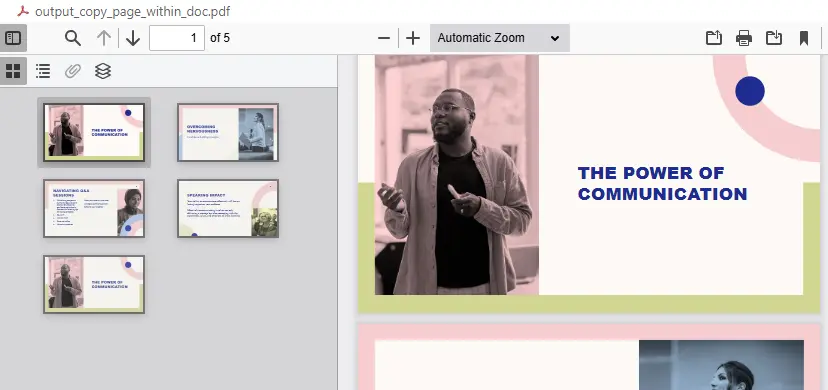
# 複製第一頁(索引為0)
if document.Pages.Count > 0:
    document.InsertPage(document, 0)

document.SaveToFile("output_copy_page_within_doc.pdf", FileFormat.PDF)
document.Close()
print("頁面已在文檔內複製。")説明:
InsertPage(document, page_index)可將同一文檔的指定頁複製到文檔末尾。- 這對於創建模板頁或重複頁的報表場景非常實用。
- 若要插入到特定位置,可使用帶插入位置參數的重載方法。
結果展示:
5. 移動頁面到新的位置
from spire.pdf.common import *
from spire.pdf import *

document = PdfDocument()
document.LoadFromFile("G:/Documents/Sample53.pdf")

if document.Pages.Count > 1:
    temp_path = "temp_page.pdf"

    # Step 1: 導出要移動的頁面為單獨PDF
    temp_doc = PdfDocument()
    temp_doc.InsertPage(document, 1, 0)
    temp_doc.SaveToFile(temp_path, FileFormat.PDF)
    temp_doc.Close()

    # Step 2: 刪除原文檔中的該頁
    document.Pages.RemoveAt(1)

    # Step 3: 重新加載導出的頁面
    imported_doc = PdfDocument()
    imported_doc.LoadFromFile(temp_path)

    # Step 4: 插入到新位置(例如第一頁前)
    document.InsertPage(imported_doc, 0, 0)

document.SaveToFile("output_move_page.pdf", FileFormat.PDF)
document.Close()
print("頁面已成功移動。")説明:
- Spire.PDF 暫不支持直接移動頁面,因此可通過“導出 + 刪除 + 導入”實現。
- 使用
InsertPage(imported_doc, target_index, source_index)可以將頁面插入到任意位置。 - 此方法靈活可靠,尤其適用於需要調整頁面順序的情況。
結果展示:

6. 關鍵類與方法總結
| 操作類型 | 方法或屬性 | 説明 |
|---|---|---|
| 添加空白頁 | Pages.Add() |
在文檔末尾創建新頁面,可指定頁面尺寸 |
| 插入指定位置 | Pages.Insert(index) |
在指定索引位置插入空白頁 |
| 導入頁面 | InsertPage(source_doc, page_index) |
將其他 PDF 文件中的頁面導入到當前文檔 |
| 刪除頁面 | Pages.RemoveAt(index) |
刪除指定頁面 |
| 複製頁面 | InsertPage(document, page_index) |
將當前文檔的某頁複製到文檔末尾 |
| 移動頁面 | “導出→刪除→插入”組合 | 實現頁面位置調整 |
7. 總結
通過以上示例可以看到,Spire.PDF for Python 為 PDF 頁面級操作提供了簡潔而強大的接口。無論是添加、複製、導入還是刪除頁面,都可以通過幾行代碼完成。
這種編程式處理方式特別適合批量文檔編輯、自動報表生成或文件結構整理等場景。無需安裝 Acrobat,就能輕鬆構建自己的 PDF 管理工具。更多PDF處理技巧請前往Spire.PDF for Python官方教程查看。

