

作為開發者人手一個的強大終端,你有什麼理由不使用呢?
廢話不多説,直接開始安裝吧。
安裝zsh
一定先執行zsh --version檢查是否已安裝zsh。
返回類似zsh 5.7.1的內容説明可以跳過zsh直接安裝iTerm2。
macOS
macOS最新系統已經內置zsh,所以你很可能不需要執行這一步操作。
安裝Homebrew可以訪問:https://brew.idayer.com/ ,教你如何飛速安裝Homebrew。
brew install zsh設置為默認:
chsh -s /usr/local/bin/zsh更多平台安裝方法請瀏覽 Installing-ZSH 。
安裝iTerm2
iTerm2是macOS平台上終端的替代方案,功能也更強大,目前支持macOS 10.14及更高版本。
你可以直接從官網下載iTerm2。
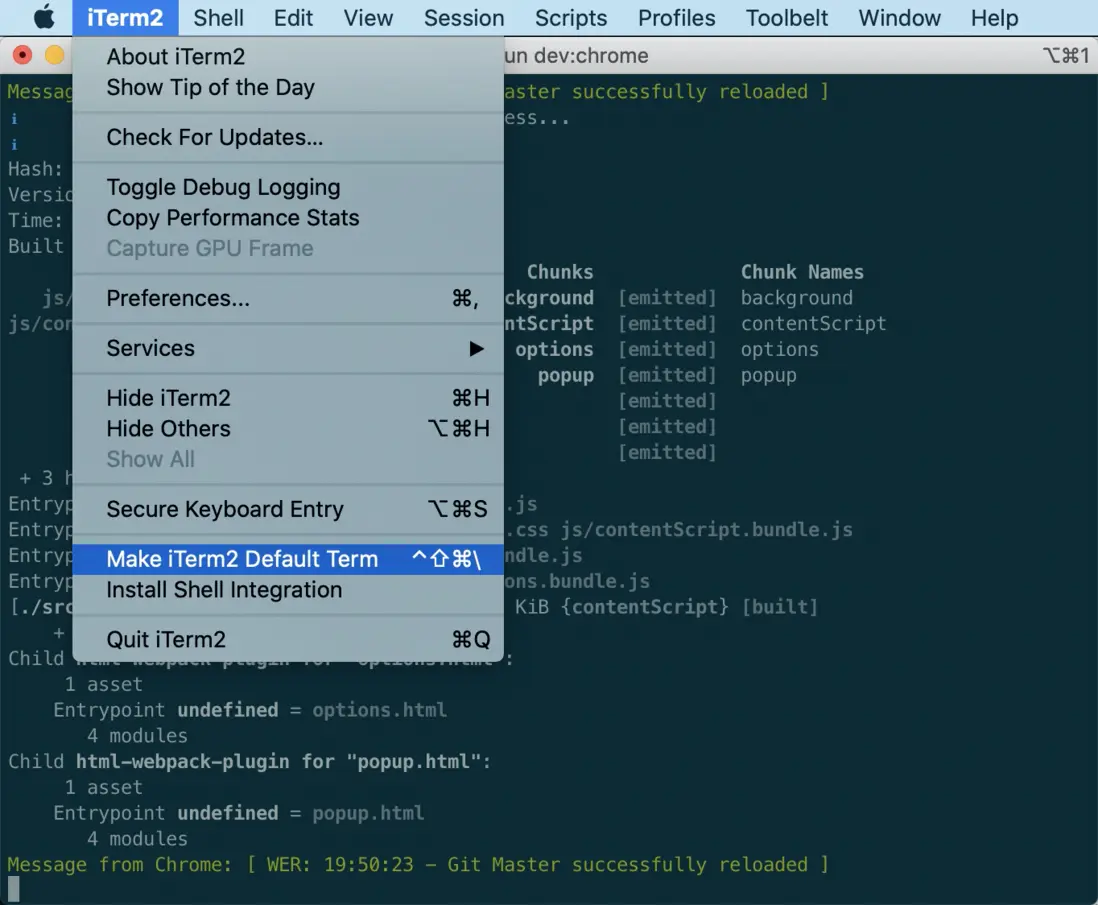
把iTerm2設為默認
找到選項:iTerm2 -> Make ITerm2 Default Term
安裝oh-my-zsh
選擇下面其中一種腳本安裝:
curl:
export REMOTE=https://gitee.com/imirror/ohmyzsh.git
sh -c "$(curl -fsSL https://cdn.jsdelivr.net/gh/ohmyzsh/ohmyzsh/tools/install.sh)"
wget:
export REMOTE=https://gitee.com/imirror/ohmyzsh.git
sh -c "$(wget -O- https://cdn.jsdelivr.net/gh/ohmyzsh/ohmyzsh/tools/install.sh)"
fetch:
export REMOTE=https://gitee.com/imirror/ohmyzsh.git
sh -c "$(fetch -o - https://cdn.jsdelivr.net/gh/ohmyzsh/ohmyzsh/tools/install.sh)"
配置主題
官方收集了一些主題(不再收錄新主題),你可以訪問 主題&&截圖 頁面查看並選取。
這裏以agnoster為例説明。
1.編輯~/.zshrc文件,修改ZSH_THEME配置:
ZSH_THEME="agnoster"
# 主題介紹請訪問 https://github.com/ohmyzsh/ohmyzsh/wiki/Themes#agnoster
2.安裝字體
agnoster還需要額外安裝字體 Meslo for Powerline
大部分主題都用到了 Powerline Fonts
下載好ttf文件,雙擊即可完成安裝。
3.選擇字體
然後打開iTerm -> Preferences -> Profiles -> Text -> Change Font,選擇Meslo LG S Regular for Powerline。
重新打開iTerm2就能看到效果。
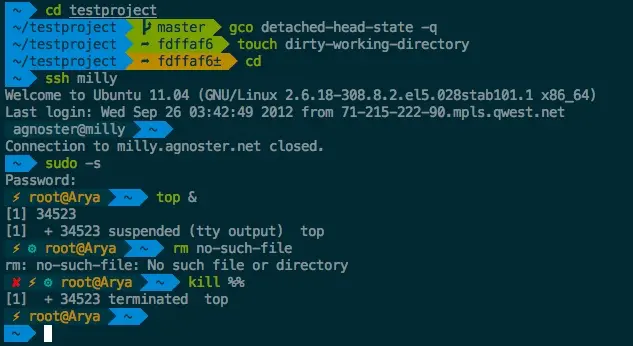
如果沒有找到滿意的主題,可以試下 更多主題 。
你也可以試下random,不用糾結選擇哪個主題:
ZSH_THEME="random"指定參與隨機的主題:
ZSH_THEME_RANDOM_CANDIDATES=(
  "robbyrussell"
  "agnoster"
)
也可以排除主題:
ZSH_THEME_RANDOM_IGNORED=(pygmalion tjkirch_mod)功能增強
1. zsh-autosuggestions
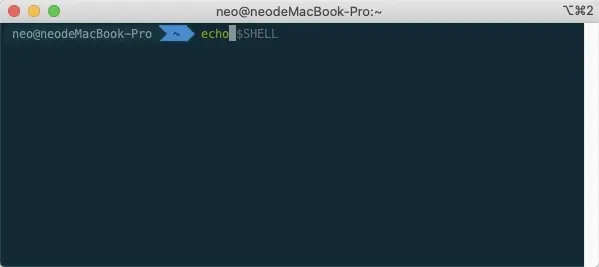
命令自動補全功能。
1.克隆代碼到$ZSH_CUSTOM/plugins(默認位於~/.oh-my-zsh/custom/plugins)
git clone https://gitee.com/imirror/zsh-autosuggestions.git ${ZSH_CUSTOM:-~/.oh-my-zsh/custom}/plugins/zsh-autosuggestions最後執行source ~/.zshrc生效。
2.在Oh My Zsh配置啓用插件
打開~/.zshrc,找到plugins,追加zsh-autosuggestions。
git為默認配置。
plugins=(git zsh-autosuggestions)如果有看不到自動補全的內容,確保以下兩個顏色不是相近的:
iTerm > Preferences > Profiles > Colors > ANSI Colors > Bright > Black
iTerm > Preferences > Profiles > Colors > Basic Colors > Background
2. zsh-syntax-highlighting
語法高亮。
1.克隆代碼到$ZSH_CUSTOM/plugins(默認位於~/.oh-my-zsh/custom/plugins)
git clone https://gitee.com/imirror/zsh-syntax-highlighting.git ${ZSH_CUSTOM:-~/.oh-my-zsh/custom}/plugins/zsh-syntax-highlighting2.在Oh My Zsh配置啓用插件
打開~/.zshrc,找到plugins,追加zsh-autosuggestions。
git為默認配置。
plugins=(git zsh-autosuggestions zsh-syntax-highlighting)最後執行source ~/.zshrc生效。
關注公眾號:湖中劍,找到更多關於我的內容。
