
前言
本文是 ahooks 源碼(v3.7.4)系列的第五篇,也是 DOM 篇的完結篇,往期文章:
- 【解讀 ahooks 源碼系列】(開篇)如何獲取和監聽 DOM 元素:useEffectWithTarget
- 【解讀 ahooks 源碼系列】DOM 篇(一):useEventListener、useClickAway、useDocumentVisibility、useDrop、useDrag
- 【解讀 ahooks 源碼系列】DOM 篇(二):useEventTarget、useExternal、useTitle、useFavicon、useFullscreen、useHover
- 【解讀 ahooks 源碼系列】DOM 篇(三):useMutationObserver、useInViewport、useKeyPress、useLongPress
本文主要解讀 useMouse、useResponsive、useScroll、useSize、useFocusWithin的源碼實現
useMouse
監聽鼠標位置。
官方文檔
基本用法
API:
const state: {
  screenX: number, // 距離顯示器左側的距離
  screenY: number, // 距離顯示器頂部的距離
  clientX: number, // 距離當前視窗左側的距離
  clientY: number, // 距離當前視窗頂部的距離
  pageX: number, // 距離完整頁面左側的距離
  pageY: number, // 距離完整頁面頂部的距離
  elementX: number, // 距離指定元素左側的距離
  elementY: number, // 距離指定元素頂部的距離
  elementH: number, // 指定元素的高
  elementW: number, // 指定元素的寬
  elementPosX: number, // 指定元素距離完整頁面左側的距離
  elementPosY: number, // 指定元素距離完整頁面頂部的距離
} = useMouse(target?: Target);
官方在線 Demo
import React, { useRef } from 'react';
import { useMouse } from 'ahooks';

export default () => {
  const ref = useRef(null);
  const mouse = useMouse(ref.current);

  return (
    <>
      <div
        ref={ref}
        style={{
          width: '200px',
          height: '200px',
          backgroundColor: 'gray',
          color: 'white',
          lineHeight: '200px',
          textAlign: 'center',
        }}
      >
        element
      </div>
      <div>
        <p>
          Mouse In Element - x: {mouse.elementX}, y: {mouse.elementY}
        </p>
        <p>
          Element Position - x: {mouse.elementPosX}, y: {mouse.elementPosY}
        </p>
        <p>
          Element Dimensions - width: {mouse.elementW}, height: {mouse.elementH}
        </p>
      </div>
    </>
  );
};
核心實現
實現原理:通過監聽 mousemove 方法,獲取鼠標的位置。通過 getBoundingClientRect(提供了元素的大小及其相對於視口的位置) 獲取到 target 元素的位置大小,計算出鼠標相對於元素的位置。
export default (target?: BasicTarget) => {
  const [state, setState] = useRafState(initState);

  useEventListener(
    'mousemove',
    (event: MouseEvent) => {
      const { screenX, screenY, clientX, clientY, pageX, pageY } = event;
      const newState = {
        screenX,
        screenY,
        clientX,
        clientY,
        pageX,
        pageY,
        elementX: NaN,
        elementY: NaN,
        elementH: NaN,
        elementW: NaN,
        elementPosX: NaN,
        elementPosY: NaN,
      };
      const targetElement = getTargetElement(target);
      if (targetElement) {
        const { left, top, width, height } = targetElement.getBoundingClientRect();

        // 計算鼠標相對於元素的位置
        newState.elementPosX = left + window.pageXOffset; // window.pageXOffset:window.scrollX 的別名
        newState.elementPosY = top + window.pageYOffset; // scrollY 的別名
        newState.elementX = pageX - newState.elementPosX;
        newState.elementY = pageY - newState.elementPosY;
        newState.elementW = width;
        newState.elementH = height;
      }
      setState(newState);
    },
    {
      target: () => document,
    },
  );

  return state;
};
完整源碼
useResponsive
獲取響應式信息。
官方文檔
基本用法
官方在線 Demo
import React from 'react';
import { configResponsive, useResponsive } from 'ahooks';

configResponsive({
  small: 0,
  middle: 800,
  large: 1200,
});

export default function () {
  const responsive = useResponsive();
  return (
    <>
      <p>Please change the width of the browser window to see the effect: </p>
      {Object.keys(responsive).map((key) => (
        <p key={key}>
          {key} {responsive[key] ? '✔' : '✘'}
        </p>
      ))}
    </>
  );
}
實現思路
- 監聽 resize 事件,在 resize 事件處理函數中需要計算,且判斷是否需要更新處理(性能優化)。
- 計算:遍歷對比
window.innerWidth與配置項的每一種屏幕寬度,大於設置為 true,否則為 false
核心實現
type Subscriber = () => void;

const subscribers = new Set<Subscriber>();

type ResponsiveConfig = Record<string, number>;
type ResponsiveInfo = Record<string, boolean>;

let info: ResponsiveInfo;

// 默認的響應式配置和 bootstrap 是一致的
let responsiveConfig: ResponsiveConfig = {
  xs: 0,
  sm: 576,
  md: 768,
  lg: 992,
  xl: 1200,
};

function handleResize() {
  const oldInfo = info;
  calculate();
  if (oldInfo === info) return; // 沒有更新,不處理
  for (const subscriber of subscribers) {
    subscriber();
  }
}

let listening = false; // 避免多次監聽

// 計算當前的屏幕寬度與配置比較
function calculate() {
  const width = window.innerWidth; // 返回窗口的的寬度
  const newInfo = {} as ResponsiveInfo;
  let shouldUpdate = false; // 判斷是否需要更新
  for (const key of Object.keys(responsiveConfig)) {
    newInfo[key] = width >= responsiveConfig[key];
    if (newInfo[key] !== info[key]) {
      shouldUpdate = true;
    }
  }
  if (shouldUpdate) {
    info = newInfo;
  }
}

// 自定義配置響應式斷點(只需配置一次)
export function configResponsive(config: ResponsiveConfig) {
  responsiveConfig = config;
  if (info) calculate();
}

export function useResponsive() {
  if (isBrowser && !listening) {
    info = {};
    calculate();
    window.addEventListener('resize', handleResize);
    listening = true;
  }
  const [state, setState] = useState<ResponsiveInfo>(info);

  useEffect(() => {
    if (!isBrowser) return;

    // In React 18's StrictMode, useEffect perform twice, resize listener is remove, so handleResize is never perform.
    // https://github.com/alibaba/hooks/issues/1910
    if (!listening) {
      window.addEventListener('resize', handleResize);
    }

    const subscriber = () => {
      setState(info);
    };
    // 添加訂閲
    subscribers.add(subscriber);
    return () => {
      // 組件卸載時取消訂閲
      subscribers.delete(subscriber);
      // 當全局訂閲器不再有訂閲器,則移除 resize 監聽事件
      if (subscribers.size === 0) {
        window.removeEventListener('resize', handleResize);
        listening = false;
      }
    };
  }, []);

  return state;
}
完整源碼
useScroll
監聽元素的滾動位置。
官方文檔
基本用法
官方在線 Demo,下方代碼的執行結果
import React, { useRef } from 'react';
import { useScroll } from 'ahooks';

export default () => {
  const ref = useRef(null);
  const scroll = useScroll(ref);
  return (
    <>
      <p>{JSON.stringify(scroll)}</p>
      <div
        style={{
          height: '160px',
          width: '160px',
          border: 'solid 1px #000',
          overflow: 'scroll',
          whiteSpace: 'nowrap',
          fontSize: '32px',
        }}
        ref={ref}
      >
        <div>
          Lorem ipsum dolor sit amet, consectetur adipisicing elit. A aspernatur atque, debitis ex
          excepturi explicabo iste iure labore molestiae neque optio perspiciatis
        </div>
        <div>
          Aspernatur cupiditate, deleniti id incidunt mollitia omnis! A aspernatur assumenda
          consequuntur culpa cumque dignissimos enim eos, et fugit natus nemo nesciunt
        </div>
        <div>
          Alias aut deserunt expedita, inventore maiores minima officia porro rem. Accusamus ducimus
          magni modi mollitia nihil nisi provident
        </div>
        <div>
          Alias aut autem consequuntur doloremque esse facilis id molestiae neque officia placeat,
          quia quisquam repellendus reprehenderit.
        </div>
        <div>
          Adipisci blanditiis facere nam perspiciatis sit soluta ullam! Architecto aut blanditiis,
          consectetur corporis cum deserunt distinctio dolore eius est exercitationem
        </div>
        <div>Ab aliquid asperiores assumenda corporis cumque dolorum expedita</div>
        <div>
          Culpa cumque eveniet natus totam! Adipisci, animi at commodi delectus distinctio dolore
          earum, eum expedita facilis
        </div>
        <div>
          Quod sit, temporibus! Amet animi fugit officiis perspiciatis, quis unde. Cumque
          dignissimos distinctio, dolor eaque est fugit nisi non pariatur porro possimus, quas quasi
        </div>
      </div>
    </>
  );
};
核心實現
function useScroll(
  target?: Target, // DOM 節點或者 ref
  shouldUpdate: ScrollListenController = () => true, // 控制是否更新滾動信息
): Position | undefined {
  const [position, setPosition] = useRafState<Position>();

  const shouldUpdateRef = useLatest(shouldUpdate); // 控制是否更新滾動信息,默認值: () => true

  useEffectWithTarget(
    () => {
      const el = getTargetElement(target, document);
      if (!el) {
        return;
      }
      // 核心處理
      const updatePosition = () => {};

      updatePosition();

      // 監聽 scroll 事件
      el.addEventListener('scroll', updatePosition);
      return () => {
        el.removeEventListener('scroll', updatePosition);
      };
    },
    [],
    target,
  );

  return position; // 滾動容器當前的滾動位置
}接下來看看updatePosition方法的實現:
const updatePosition = () => {
    let newPosition: Position;
    // target屬性傳 document
    if (el === document) {
      // scrollingElement 返回滾動文檔的 Element 對象的引用。
      // 在標準模式下,這是文檔的根元素, document.documentElement。
      // 當在怪異模式下,scrollingElement 屬性返回 HTML body 元素(若不存在返回 null)
      if (document.scrollingElement) {
        newPosition = {
          left: document.scrollingElement.scrollLeft,
          top: document.scrollingElement.scrollTop,
        };
      } else {
        // 怪異模式的處理:取 window.pageYOffset, document.documentElement.scrollTop, document.body.scrollTop 三者中最大值
        // https://developer.mozilla.org/zh-CN/docs/Web/API/Document/scrollingElement
        // https://stackoverflow.com/questions/28633221/document-body-scrolltop-firefox-returns-0-only-js
        newPosition = {
          left: Math.max(
            window.pageXOffset,
            document.documentElement.scrollLeft,
            document.body.scrollLeft,
          ),
          top: Math.max(
            window.pageYOffset,
            document.documentElement.scrollTop,
            document.body.scrollTop,
          ),
        };
      }
    } else {
      newPosition = {
        left: (el as Element).scrollLeft, // 獲取滾動條到元素左邊的距離(滾動條滾動了多少像素)
        top: (el as Element).scrollTop,
      };
    }
    //     判斷是否更新滾動信息
    if (shouldUpdateRef.current(newPosition)) {
      setPosition(newPosition);
    }
};- Element.scrollLeft 獲取滾動條到元素左邊的距離
- Element.scrollTop 獲取滾動條到元素頂部的距離
useSize
監聽 DOM 節點尺寸變化的 Hook。
官方文檔
基本用法
官方在線 Demo
import React, { useRef } from 'react';
import { useSize } from 'ahooks';

export default () => {
  const ref = useRef(null);
  const size = useSize(ref);
  return (
    <div ref={ref}>
      <p>Try to resize the preview window </p>
      <p>
        width: {size?.width}px, height: {size?.height}px
      </p>
    </div>
  );
};
核心實現
這裏涉及 ResizeObserver
源碼較容易理解,就不展開了
//     目標 DOM 節點的尺寸
type Size = { width: number; height: number };

function useSize(target: BasicTarget): Size | undefined {
  const [state, setState] = useRafState<Size>();

  useIsomorphicLayoutEffectWithTarget(
    () => {
      const el = getTargetElement(target);

      if (!el) {
        return;
      }
      // Resize Observer API 提供了一種高性能的機制,通過該機制,代碼可以監視元素的大小更改,並且每次大小更改時都會向觀察者傳遞通知
      const resizeObserver = new ResizeObserver((entries) => {
        entries.forEach((entry) => {
          // 返回 DOM 節點的尺寸
          const { clientWidth, clientHeight } = entry.target;
          setState({
            width: clientWidth,
            height: clientHeight,
          });
        });
      });

      // 監聽目標元素
      resizeObserver.observe(el);
      return () => {
        resizeObserver.disconnect();
      };
    },
    [],
    target,
  );

  return state;
}
完整源碼
useFocusWithin
監聽當前焦點是否在某個區域之內,同 css 屬性: focus-within
官方文檔
基本用法
官方在線 Demo
使用 ref 設置需要監聽的區域。可以通過鼠標點擊外部區域,或者使用鍵盤的 tab 等按鍵來切換焦點。
import React, { useRef } from 'react';
import { useFocusWithin } from 'ahooks';
import { message } from 'antd';

export default () => {
  const ref = useRef(null);
  const isFocusWithin = useFocusWithin(ref, {
    onFocus: () => {
      message.info('focus');
    },
    onBlur: () => {
      message.info('blur');
    },
  });
  return (
    <div>
      <div
        ref={ref}
        style={{
          padding: 16,
          backgroundColor: isFocusWithin ? 'red' : '',
          border: '1px solid gray',
        }}
      >
        <label style={{ display: 'block' }}>
          First Name: <input />
        </label>
        <label style={{ display: 'block', marginTop: 16 }}>
          Last Name: <input />
        </label>
      </div>
      <p>isFocusWithin: {JSON.stringify(isFocusWithin)}</p>
    </div>
  );
};
核心實現
主要還是監聽了 focusin 和 focusout 事件
- focusin:當元素聚焦時會觸發。和 focus 一樣,只是 focusin 事件支持冒泡;
- focusout:當元素即將失去焦點時會被觸發。和 blur 一樣,只是 focusout 事件支持冒泡。
觸發順序:
在同時支持四種事件的瀏覽器中,當焦點在兩個元素之間切換時,觸發順序如下(不同瀏覽器效果可能不同):
- focusin 在第一個目標元素獲得焦點前觸發
- focus 在第一個目標元素獲得焦點後觸發
- focusout 第一個目標失去焦點時觸發
- focusin 第二個元素獲得焦點前觸發
- blur 第一個元素失去焦點時觸發
- focus 第二個元素獲得焦點後觸發
參考:focus/blur VS focusin/focusout
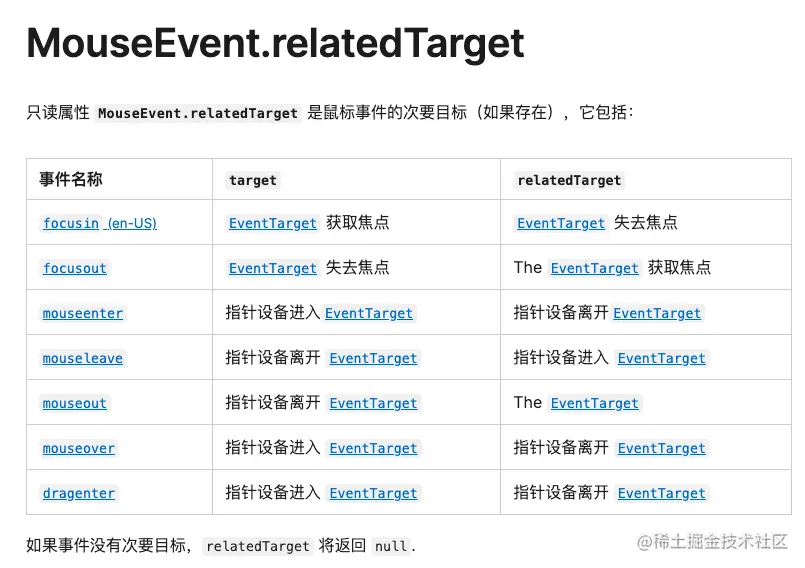
MouseEvent.relatedTarget 屬性返回與觸發鼠標事件的元素相關的元素:
export default function useFocusWithin(target: BasicTarget, options?: Options) {
  const [isFocusWithin, setIsFocusWithin] = useState(false);
  const { onFocus, onBlur, onChange } = options || {};
  // 監聽 focusin 事件
  useEventListener(
    'focusin',
    (e: FocusEvent) => {
      if (!isFocusWithin) {
        onFocus?.(e);
        onChange?.(true);
        setIsFocusWithin(true);
      }
    },
    {
      target,
    },
  );

  // 監聽 focusout 事件
  useEventListener(
    'focusout',
    (e: FocusEvent) => {
      // relatedTarget 屬性返回與觸發鼠標事件的元素相關的元素。
      // https://developer.mozilla.org/zh-CN/docs/Web/API/MouseEvent/relatedTarget
      if (isFocusWithin && !(e.currentTarget as Element)?.contains?.(e.relatedTarget as Element)) {
        onBlur?.(e);
        onChange?.(false);
        setIsFocusWithin(false);
      }
    },
    {
      target,
    },
  );

  return isFocusWithin; // 焦點是否在當前區域
}
完整源碼