

Docker鏡像準備
拉取ubuntu18.04鏡像
docker pull ubuntu18.04啓動ubuntu容器
docker run -it --name="php7.3" --privileged=true ubuntu:18.04 /bin/bashubuntu更換阿里雲源
備份源
mv /etc/apt/sources.list /etc/apt/sources.list.bak更換源
    echo -e "deb http://mirrors.aliyun.com/ubuntu/ bionic main restricted universe \n
    deb http://mirrors.aliyun.com/ubuntu/ bionic-security main restricted universe multiverse \n
    deb http://mirrors.aliyun.com/ubuntu/ bionic-updates main restricted universe multiverse \n
    deb http://mirrors.aliyun.com/ubuntu/ bionic-proposed main restricted universe multiverse \n
    deb http://mirrors.aliyun.com/ubuntu/ bionic-backports main restricted universe multiverse \n
    deb-src http://mirrors.aliyun.com/ubuntu/ bionic main restricted universe multiverse \n
    deb-src http://mirrors.aliyun.com/ubuntu/ bionic-security main restricted universe multiverse \n
    deb-src http://mirrors.aliyun.com/ubuntu/ bionic-updates main restricted universe multiverse \n
    deb-src http://mirrors.aliyun.com/ubuntu/ bionic-proposed main restricted universe multiverse \n
    deb-src http://mirrors.aliyun.com/ubuntu/ bionic-backports main restricted universe multiverse" >> /etc/apt/sources.list
更新源
apt-get update安裝常用的軟件
軟件安裝過程中遇到:Do you want to continue? [Y/n]統一輸入y然後回車
vim(必須,且必須會使用下面四個命令)
apt-get install -y vim需要掌握的vim命令
打開文件:vim 文件名
輸入內容:打開文件後直接按i
退出編輯狀態:按esc
關閉並保存文件:先退出編輯狀態,然後按shift+:輸入wq然後回車
curl(可選)
apt-get install -y curl安裝wget(可選)
apt-get install -y wget安裝niginx1.14.0
安裝niginx
apt-get install -y nginx啓動nginx
service nginx start配置nginx
創建配置目錄
mkdir -p /data/nginx/conf創建存放網站代碼目錄
mkdir -p /data/nginx/code給目錄添加權限
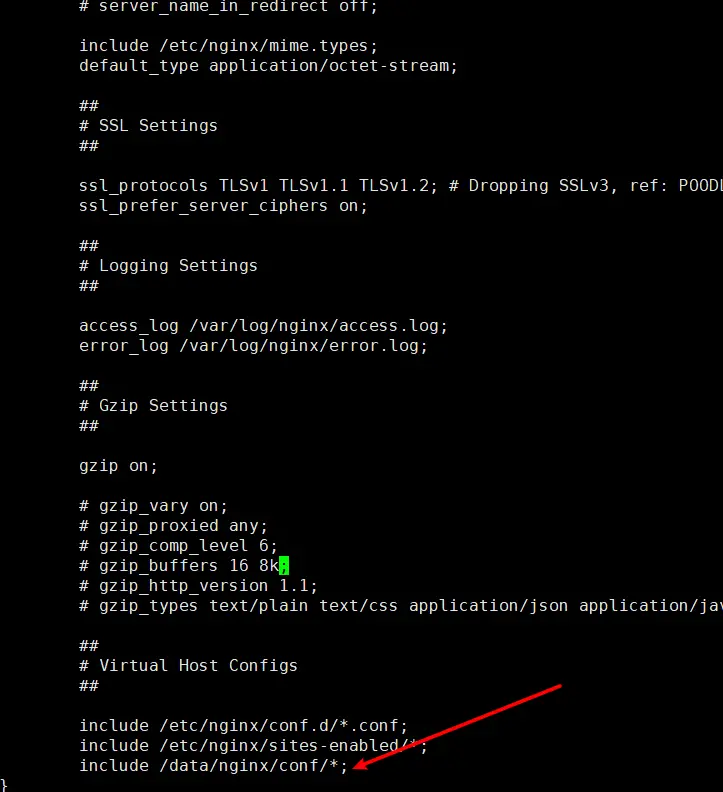
chown :www-data -R /data/nginx修改nginx配置,將創建的配置目錄加載到配置中
vim /etc/nginx/nginx.conf在http配置中添加 include /data/nginx/conf/*;
測試添加一個網站
創建配置文件
vim /data/nginx/conf/test.net添加內容,保存退出
server {
    listen 80;
    server_name test.net;
    index index.html index.htm;
    root /data/nginx/code/test.net;

    location / {
        try_files $uri $uri/ =404;
    }

    location ~ /\.ht {
        deny all;
    }
}
創建代碼文件
mkdir  /data/nginx/code/test.net
vim /data/nginx/code/test.net/index.html
添加內容,保存退出
<html>
    <head>
        <title>test.com</title>
    </head>
    <body>
        test build web success!
    </body>
</html>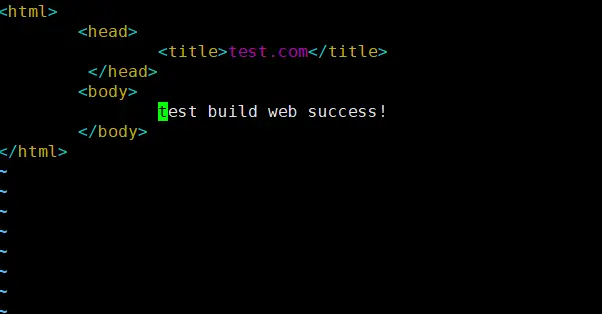
重啓nginx
service nginx restart修改本機hosts
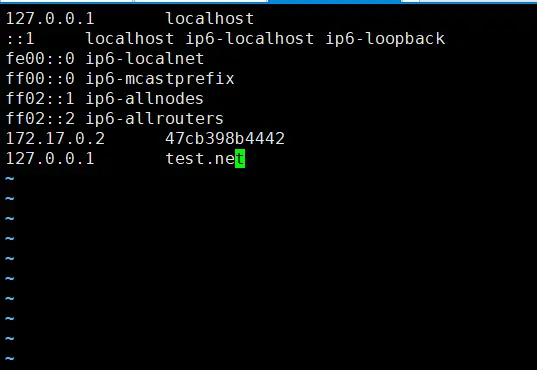
vim /etc/hosts在文件末尾添加 127.0.0.1 test.net ,保存退出
測試訪問
#此操作需要安裝curl
curl test.net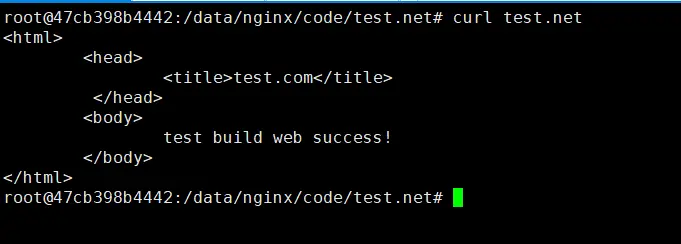
至此nginx安裝完成
安裝PHP7.3
添加PPA源支持
apt-get install software-properties-common源添加php
add-apt-repository ppa:ondrej/php更新源
apt-get update安裝PHP
安裝php7.3
apt-get install php7.3-fpm選擇時區步驟一:輸入6 + 回車

選擇時區步驟二:輸入70 + 回車

安裝php擴展
當前命令安裝了全部擴展,可以按需安裝
apt-get install php7.3-bz2 php7.3-curl php7.3-fileinfo php7.3-gd php7.3-gettext php7.3-gmp php7.3-intl php7.3-imap php7.3-interbase php7.3-ldap php7.3-mbstring php7.3-exif php7.3-mysqli php7.3-odbc php7.3-pgsql php7.3-shmop php7.3-snmp php7.3-soap php7.3-sockets php7.3-sqlite3 php7.3-tidy php7.3-xmlrpc php7.3-xsl php7.3-redis php7.3-pdo驗證PHP是否安裝成功
php -v
可以輸入php -m 查看已安裝擴展
安裝mysql5.7
安裝mysql
apt-get install mysql-server-5.7啓動mysql服務
service mysql start查看mysql賬户密碼
cat /etc/mysql/debian.cnf使用賬號密碼登陸
mysql -h localhost -u debian-sys-maint -p修改root密碼
use mysql;
update user set authentication_string=PASSWORD("root") where user='root';
update user set plugin="mysql_native_password";
flush privileges;
修改數據庫編碼格式
vim /etc/mysql/mysql.conf.d/mysqld.cnf
#在文件末尾添加
character_set_server=utf8
collation_server=utf8_general_ci
vim /etc/mysql/my.cnf
#在文件末尾添加
[mysql]
default-character-set=utf8重啓mysql服務
service mysql restart開啓遠程訪問
#連接mysql
mysql -u root -p
#選擇數據庫
use mysql;
#開啓遠程授權
GRANT ALL PRIVILEGES ON *.* TO 'root'@'%' IDENTIFIED BY 'root' WITH GRANT OPTION;
#刷新權限
FLUSH PRIVILEGES;
#退出
exit
修改配置文件
vim /etc/mysql/mysql.conf.d
#將bind-address註釋掉
#重啓mysql
service mysql restart啓動報錯No directory, logging in with HOME=/
usermod -d /var/lib/mysql/ mysql

ln -s /var/lib/mysql/mysql.sock /tmp/mysql.sock

chown -R mysql:mysql /var/lib/mysql
解決時間戳格式報錯
vim /etc/mysql/mysql.conf.d/mysqld.cnf在文件末尾添加
sql_mode=ONLY_FULL_GROUP_BY,STRICT_TRANS_TABLES,ERROR_FOR_DIVISION_BY_ZERO,NO_AUTO_CREATE_USER,NO_ENGINE_SUBSTITUTIONnginx添加php支持
啓動php-fpm
service php7.3-fpm starttest.net站點的nginx配置修改
server {
    listen 80;
    server_name test.net;
    index index.php index.html index.htm;
    root /data/nginx/code/test.net;

    location / {
        try_files $uri $uri/ =404;
    }

    location ~ \.php$ {
        fastcgi_split_path_info ^(.+\.php)(/.+)$;
        #主要代碼
        fastcgi_pass unix:/var/run/php/php7.3-fpm.sock;
        fastcgi_index index.php;
        include fastcgi_params;
        fastcgi_param SCRIPT_FILENAME $document_root$fastcgi_script_name;
    }

    location ~ /\.ht {
        deny all;
    }
}
站點添加php文件
vim /data/nginx/code/test.net/index.php文件內容
<?php
    phpinfo();
安裝composer(可選)
#下載安裝文件
php -r "copy('https://getcomposer.org/installer', 'composer-setup.php');"

#驗證安裝文件
php -r "if (hash_file('sha384', 'composer-setup.php') === '756890a4488ce9024fc62c56153228907f1545c228516cbf63f885e036d37e9a59d27d63f46af1d4d07ee0f76181c7d3') { echo 'Installer verified'; } else { echo 'Installer corrupt'; unlink('composer-setup.php'); } echo PHP_EOL;"

#下載composer
php composer-setup.php --install-dir=/usr/local/bin --filename=composer

#刪除安裝文件
php -r "unlink('/usr/local/bin/composer-setup.php');"驗證composer:composer -v
安裝git(可選)
apt-get install git安裝nodejs(可選)
#...
curl -sL https://deb.nodesource.com/setup_14.x | bash -
#更新源
apt-get update
#安裝nodejs
apt-get install -y nodejs
安裝redis6.2(可選)
安裝
#添加源
add-apt-repository ppa:redislabs/redis
#更新源
apt-get update
#安裝
apt-get install redis
啓動
service redis-server start連接redis
redis-cliredis開啓遠程訪問
vim /etc/redis/redis.conf註釋掉bind行,在行頭添加#
protected-mode 修改為no
