


在新建一個react工程的時候,對於新手或者不需要非常複雜的配置的時候,直接使用create-react-app新建一個項目是最佳選擇。
然而事實上create-react-app大多數還是幫我們簡化了webpack的配置,對於一個稍微大型的工程,或者需要多人協作的工程來説,工具鏈的配置也是必不可少的。比如提交代碼前格式化驗證,git提交信息的驗證,已經保存自動做格式化等等。
本文介紹了create-react-app創建的項目配置相關工具鏈,以及針對於vscode的相關配置。
初始化工程
-
執行create-react-app腳本
npx create-react-app levi-web --template typescript - 打開項目,整理目錄,刪除自動化測試的相關包和文件,修繕package.json
工具鏈配置
-
添加
huksy做提交前的各種操作yarn add husky -Dyarn husky installnpm set-script prepare "husky install" // 此處需要npm7+,7以下可手動設置 -
添加
commitlint,規範commit-msgyarn add @commitlint/config-conventional @commitlint/cli -Decho "module.exports = {extends: ['@commitlint/config-conventional']}" > commitlint.config.jsnpx husky add .husky/commit-msg 'npx --no -- commitlint --edit "$1"' -
添加
prettier,讓代碼更美觀yarn add --dev --exact prettierecho {}> .prettierrc.json// .prettierrc.json(參考) { "arrowParens": "always", "bracketSameLine": false, "bracketSpacing": true, "embeddedLanguageFormatting": "auto", "htmlWhitespaceSensitivity": "css", "insertPragma": false, "jsxSingleQuote": false, "printWidth": 80, "proseWrap": "preserve", "quoteProps": "as-needed", "requirePragma": false, "semi": false, "singleQuote": false, "trailingComma": "es5", "useTabs": false, "vueIndentScriptAndStyle": false, "tabWidth": 2 }// .prettierignore build coveragenpm set-script lint "prettier --write ." // 此處同樣需要npm7+yarn add lint-staged -Dnpx husky add .husky/pre-commit "npx lint-staged"// package.json { "lint-staged": { "**/*": "prettier --write --ignore-unknown" } } -
修改
eslint,使其能夠和prettier更好的配合yarn add eslint-config-prettier eslint-plugin-prettier -D// package.json "eslintConfig": { "extends": [ ... "prettier", // It turns off all ESLint rules that are unnecessary or might conflict with Prettier "plugin:prettier/recommended" // Runs Prettier as an ESLint rule and reports differences as individual ESLint issues. ] }, - 配置stylelint(暫時先不要吧,後續看情況補充)
-
vscode配置settings.json(工作區)
通過此配置,代碼保存的時候自動執行eslint的修復動作,由於配置了eslint-plugin-prettier,讓prettier成為了eslint的rule,這樣便使得保存代碼的時候,代碼不僅按照eslint自動修復了,同時也按照prettier自動修復了{ "editor.codeActionsOnSave": { "source.fixAll.eslint": true, "source.fixAll.stylelint": true }, "eslint.validate": [ "javascript", "javascriptreact", "typescript", "typescriptreact", "json" ] }
IDE(vscode)配置
- 擴展程序中添加
ESLint,Prettier - Code formatter,Stylelint(暫時可不加),EditorConfig for VS Code -
配置settings.json(工作區)
通過此配置,代碼保存的時候自動執行eslint的修復動作,由於配置了
eslint-plugin-prettier,讓prettier成為了eslint的rule,這樣便使得保存代碼的時候,代碼不僅按照eslint自動修復了,同時也按照prettier自動修復了{ "editor.codeActionsOnSave": { "source.fixAll.eslint": true, "source.fixAll.stylelint": true }, "eslint.validate": [ "javascript", "javascriptreact", "typescript", "typescriptreact", "json" ] } -
添加
.editorconfig,為了不同IDE行為保持一致,注意規則不要和prettier衝突,以下作為參考root = true [*] charset = utf-8 indent_style = space indent_size = 2 # end_of_line: set to lf, cr, or crlf to control how line breaks are represented. end_of_line = lf # set to true to ensure file ends with a newline when saving and false to ensure it doesn't. insert_final_newline = true # set to true to remove any whitespace characters preceding newline characters and false to ensure it doesn't. trim_trailing_whitespace = true
到此,恭喜你已經完成了一個工具鏈的配置,後面改多頁應用是擴展內容一般項目用不到
改多頁應用
-
使用
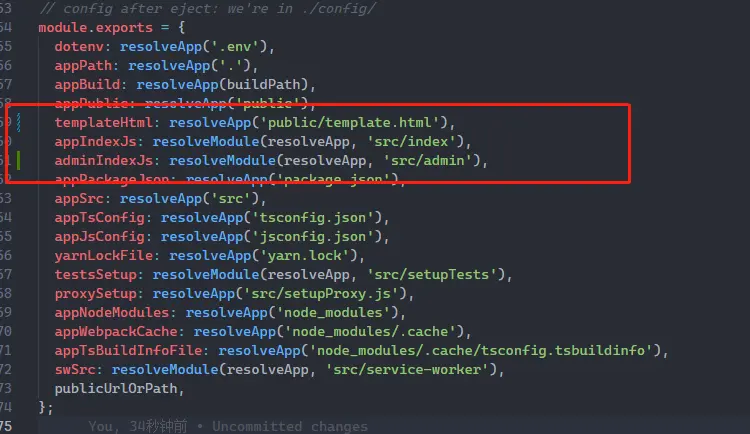
yarn eject,輸入yyarn eject - src目錄中複製一份index.tsx,該名為admin.tsx,作為第二個入口文件
- 修改public/index.html名稱為template.html,並把所有的引用到這個地址的地方改一下(這裏可以不改名稱,只是為了防止產生歧義)
-
修改config/paths.js
-
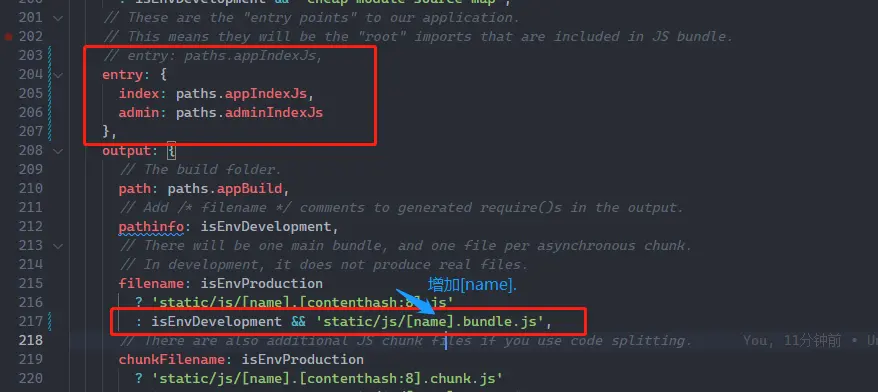
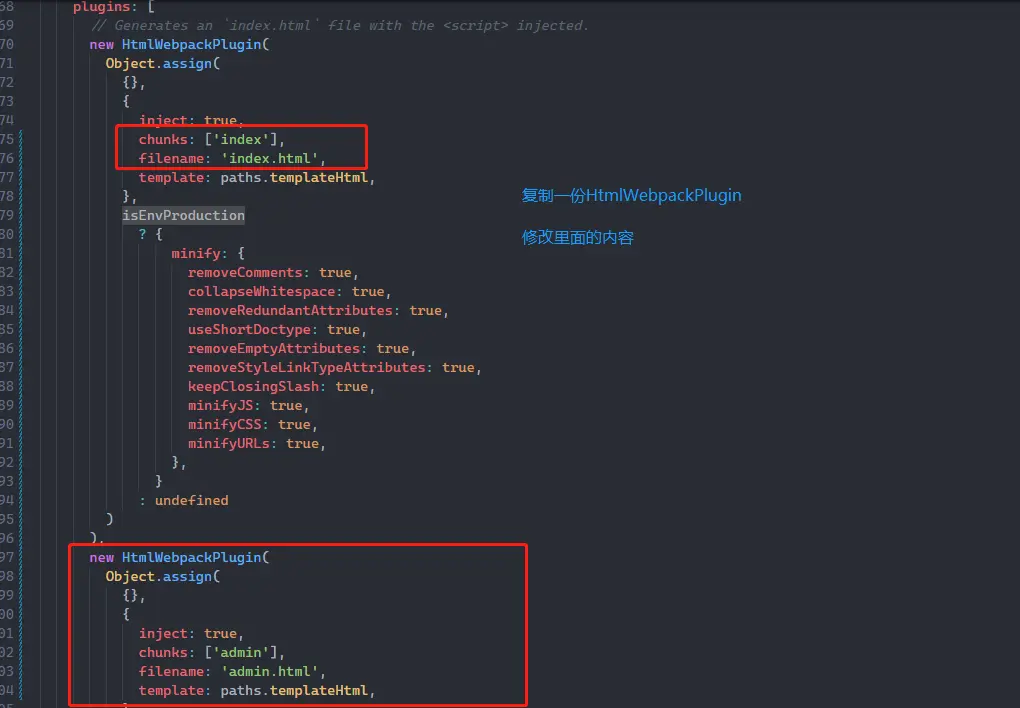
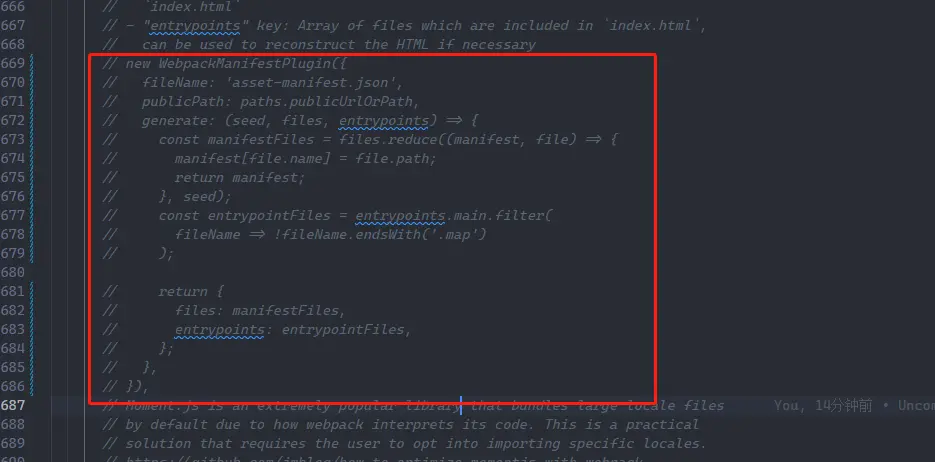
修改config/webpack.config.js
修改
entry和output
複製
HtmlWebpackPlugin並修改
註釋掉
WebpackManifestPlugin
-
修改scripts目錄下的start和build文件
這一步其實不改也無妨,為了增加項目的健壯性,可以改一下

恭喜你,到此為止,多頁應用也修改完成了,可以試着訪問項目,訪問index.html和admin.html啦
加入羣聊,一起交流前端技術吧~
