
為打印預覽對話框 PrintPreviewDialog 添加保存到 PDF 文件按鈕源代碼詳解
- 前言
- 1、創建自定義打印預覽對話框 CustomPrintPreviewDialog
- 2、自定義打印預覽對話框內部按鈕和事件
- 2.1、自定義打印預覽對話框內部按鈕和事件
- 2.2、公共靜態類和打印預覽分類枚舉
- 2.3、主窗調用自定義打印預覽對話框
- 3、自定義打印預覽對話框外部按鈕
- 3.1、自定義打印預覽對話框外部按鈕
- 3.2、公共靜態類和打印預覽分類枚舉
- 3.3、主窗調用自定義打印預覽對話框
- 4、Adobe PDF 與 Microsoft Print to PDF 的轉換特點
- 4.1、Microsoft Print to PDF 轉換 PDF
- 4.2、Adobe PDF 轉換 PDF
- 4.3、轉換中解決的其它問題
- 4.4、整理後的完整靜態函數:
- 4.4.1、Adobe PS 轉換為 PDF 函數過程:
- 4.4.2、Adobe Acrobat Pro 虛擬打印機註冊表設置
前言
以 Windows 平台 Visual Studio 2017 C# 為開發工具,Windows Forms(.Net FrameWork 4.0)為框架,創建創建自定義打印預覽對話框,並添加自定義按鈕,以將打印文檔內容保存到 PDF 文件。
1、創建自定義打印預覽對話框 CustomPrintPreviewDialog
在項目中添加類,命名為 CustomPrintPreviewDialog : PrintPreviewDialog
using System;
using System.Drawing;
using System.Drawing.Printing;
using System.Windows.Forms;
namespace 命名空間
{
    public partial class CustomPrintPreviewDialog : PrintPreviewDialog//以原始打印預覽為基類
    {
    }
}
2、自定義打印預覽對話框內部按鈕和事件
2.1、自定義打印預覽對話框內部按鈕和事件
using static 命名空間.PublicStaticClass;

namespace 命名空間
{
    public partial class CustomPrintPreviewDialog : PrintPreviewDialog
    {
        /// <summary>頁面設置</summary>
        private PageSetupDialog pageSetupDialog = new PageSetupDialog();
        /// <summary>當前打印文檔</summary>
        private PrintDocument CurrentDocument;
        /// <summary>獲取和設置當前打印文檔</summary>
        public new PrintDocument Document
        {
            get => CurrentDocument;
            set
            {
                CurrentDocument = value;
                base.Document = value;
            }
        }

        /// <summary>自定義打印預覽對話框</summary>
        public CustomPrintPreviewDialog()
        {
            // 獲取打印預覽對話框原生工具欄
            if (!(this.Controls["toolStrip1"] is ToolStrip toolStrip)) return;

            //初始化頁面設置
            pageSetupDialog = new PageSetupDialog
            {
                EnableMetric = true//打開毫米為單位,否則為1/100英寸
            };

            // 添加頁面設置按鈕,和內部單擊事件
            ToolStripButton PrintSettingsButton = new ToolStripButton("頁面設置", null, (s, e) => PrintSettingsButton_Click())
            {
                DisplayStyle = ToolStripItemDisplayStyle.ImageAndText,// 顯示樣式
                Image = Properties.Resources.PageSetup,//自定義按鈕圖標圖像
                ImageScaling = ToolStripItemImageScaling.SizeToFit,
                Size = new Size(120, 40),// 設置按鈕大小
                Margin = new Padding(20, 2, 5, 2),// 設置邊距控制位置
                Alignment = ToolStripItemAlignment.Left,//.Right// 設置對齊方式
            };
            toolStrip.Items.Insert(0, PrintSettingsButton);//插入到PrintPreviewDialog工具欄最前面

            // 添加保存為PDF文件按鈕,和內部單擊事件
            ToolStripButton SavePDFButton = new ToolStripButton("保存為 PDF", null, (s, e) => PrintToPDF())
            {
                DisplayStyle = ToolStripItemDisplayStyle.ImageAndText,
                Image = Properties.Resources.PDFFile,
                ImageScaling = ToolStripItemImageScaling.SizeToFit,
                ToolTipText = "保存為 PDF 文件"
            };
            toolStrip.Items.Insert(10, SavePDFButton);//插入第10個圖標位置
        }

        /// <summary>打印設置按鈕單擊</summary>
        private void PrintSettingsButton_Click()
        {
            pageSetupDialog.Document = this.PrintPreviewControl.Document;
            pageSetupDialog.PageSettings = this.PrintPreviewControl.Document.DefaultPageSettings;

            if (pageSetupDialog.ShowDialog() == DialogResult.OK)
            {
                this.Document.DefaultPageSettings = pageSetupDialog.PageSettings;
                this.PrintPreviewControl.InvalidatePreview();//刷新預覽
            }
        }

        /// <summary>打印到PDF文件</summary>
        private void PrintToPDF()
        {
            if (CurrentDocument == null)
            {
                MessageBox.Show("沒有可打印的文檔", "提示",MessageBoxButtons.OK, MessageBoxIcon.Warning);
                return;
            }
            string PDFFilePath = string.Empty;
            switch (printResultTableType)
            {
                case PrintResultTableType.AdcpDischargeMeasureResults:
                    PDFFilePath = SiteMeasureResultsFile.Replace(".SRF", "_ADCP流量測驗記載表.PDF");
                    break;
                case PrintResultTableType.AdcpVelocityDirectionResults:
                    PDFFilePath = SiteMeasureResultsFile.Replace(".SRF", "_ADCP流速流向成果表.PDF");
                    break;
                case PrintResultTableType.PrintPreviewFormGraphics:
                    if (string.IsNullOrEmpty(ProjectDirectory))
                    {
                        PDFFilePath = Application.StartupPath + $"\\{ActiveFormName}窗體圖形.PDF";
                    }
                    else
                    {
                        PDFFilePath = ProjectDirectory + $"\\{ActiveFormName}窗體圖形.PDF";
                    }
                    break;
                case PrintResultTableType.PrintPreviewGraphics:
                    if (string.IsNullOrEmpty(ProjectDirectory))
                    {
                        PDFFilePath = Application.StartupPath + $"\\{ActiveFormName}圖形.PDF";
                    }
                    else
                    {
                        PDFFilePath = ProjectDirectory + $"\\{ActiveFormName}圖形.PDF";
                    }
                    break;
            }
            string PrinterString = string.Empty;
            if (CheckPdfPrinterExists(out PrinterString))
            {
                using (PrintDialog printDialog = new PrintDialog())
                {
                    // 配置打印設置
                    PrinterSettings printerSettings = new PrinterSettings
                    {
                        PrinterName = PrinterString,//PDF 虛擬打印機名稱
                        PrintToFile = true,//打開打印到文件
                        PrintFileName = PDFFilePath//打印的PDF文件路徑名稱
                    };

                    printDialog.Document = CurrentDocument;
                    printDialog.PrinterSettings = printerSettings;
                   // printDialog.UseEXDialog = true;

                    // 執行打印
                    CurrentDocument.PrinterSettings = printerSettings;
                    CurrentDocument.Print();

                    MessageBox.Show($"PDF文件已成功保存到:\r\n\r\n{PDFFilePath}", "導出成功", MessageBoxButtons.OK, MessageBoxIcon.Information);
                }
            }
            else
            {
                MessageBox.Show("未找到 Adobe 或微軟 PDF 打印機","提示", MessageBoxButtons.OK, MessageBoxIcon.Information);
            }
        }


        /// <summary>檢查 PDF虛擬打印機</summary>
        /// <param name="PrinterString">輸出 PDF 打印機名稱</param>
        /// <returns>返回是否存在 PDF 虛擬打印機</returns>
        private bool CheckPdfPrinterExists(out string PrinterString)
        {
            foreach (string printer in PrinterSettings.InstalledPrinters)
            {
                if (printer.Contains("Microsoft Print to PDF") || printer.Contains("Adobe PDF") || printer.Contains("Acrobat Distiller"))
                {
                    PrinterString = printer;
                    return true;
                }
            }
            PrinterString = string.Empty;
            return false;
        }
    }
}
2.2、公共靜態類和打印預覽分類枚舉
namespace 命名空間
{
    /// <summary>公共靜態類</summary>
    public static class PublicStaticClass
    {
        /// <summary>打印表類型</summary>
        public static PrintResultTableType printResultTableType;
        ///<summary>活動窗體名稱</summary>
        public static string ActiveFormName = string.Empty;
    }
    /// <summary>打印成果表類型</summary>
    public enum PrintResultTableType
    {
        /// <summary>打印預覽ADCP流量測驗成果表</summary>
        AdcpDischargeMeasureResults = 0,
        /// <summary>打印預覽ADCP流速流向成果表</summary>
        AdcpVelocityDirectionResults = 1,
        /// <summary>打印預覽圖形</summary>
        PrintPreviewGraphics = 2,
        /// <summary>打印預覽窗體圖形</summary>
        PrintPreviewFormGraphics = 3,
    }
}
2.3、主窗調用自定義打印預覽對話框
主窗體為MDI,以打印子窗體圖像為例。
using static 命名空間.PublicStaticClass;
namespace 命名空間
{
   public partial class AdcpProcesMainForm : Form
   {
        /// <summary>打印文檔</summary>
        private PrintDocument PrintDocument = null;

        public AdcpProcesMainForm()
        {
            InitializeComponent();
            this.MdiChildActivate += OnMdiChildActivated;
        }

        /// <summary>當前活動子窗口</summary>
        /// <param name="sender"></param>
        /// <param name="e"></param>
        private void OnMdiChildActivated(object sender, EventArgs e)
        {
            var activeChild = this.ActiveMdiChild;
            if (activeChild != null)
            {
                ActiveFormName =activeChild.Text;
            }
        }

        private void PrintPreviewFormGraphicsMenu_Click(object sender, EventArgs e)
        {
            var activeChild = this.ActiveMdiChild;
            if (this.ActiveMdiChild != null)
            {
                printResultTableType = PrintResultTableType.PrintPreviewFormGraphics;

                //this.Hide();//隱藏主窗,配合Preview.FormClosed。

                PrintDocument = new PrintDocument();
                // 自定義打印預覽
                CustomPrintPreviewDialog Preview = new CustomPrintPreviewDialog
                {
                    // ShowIcon = false,
                    StartPosition = FormStartPosition.CenterScreen,
                    WindowState = FormWindowState.Maximized,
                    Icon = Properties.Resources.AdcpTable, // 設置自定義打印預覽圖標
                    Text = "窗體打印預覽",            // 設置窗口標題
                    Height = Screen.PrimaryScreen.Bounds.Height,
                    Width = Screen.PrimaryScreen.Bounds.Width,
                    FormBorderStyle = FormBorderStyle.FixedDialog,
                };

                // 捕獲子窗體的圖形區域
                Bitmap FormImage = new Bitmap(activeChild.Width, activeChild.Height);

                activeChild.DrawToBitmap(FormImage, new Rectangle(0, 0, FormImage.Width, FormImage.Height));

                PrintDocument.PrintPage += (s, args) =>
                {
                    // 計算居中打印位置
                    Rectangle printArea = args.MarginBounds;
                    if (FormImage.Width > printArea.Width || FormImage.Height > printArea.Height)
                    {
                        // 按比例縮放
                        Size newSize = FitSize(FormImage.Size, printArea.Size);
                        int x = printArea.X + (printArea.Width - newSize.Width) / 2;
                        int y = printArea.Y + (printArea.Height - newSize.Height) / 2;

                        args.Graphics.DrawImage(FormImage,
                            new Rectangle(x, y, newSize.Width, newSize.Height));
                    }
                    else
                    {
                        // 居中打印
                        int x = printArea.X + (printArea.Width - FormImage.Width) / 2;
                        int y = printArea.Y + (printArea.Height - FormImage.Height) / 2;
                        args.Graphics.DrawImage(FormImage, x, y);
                    }
                };

                /// <summary>打印預覽窗體關閉後,恢復主窗顯示</summary>
                //Preview.FormClosed += (s, args) =>
                // {
                //     this.Show(); // 預覽關閉時重新顯示主窗體
                //     this.Activate(); // 激活主窗體獲得焦點
                // };

                Preview.Document = PrintDocument;

                if (FormImage.Width > FormImage.Height)
                {
                    Preview.Document.DefaultPageSettings.Landscape = true;
                    Preview.Landscape = true;
                }
                else
                {
                    Preview.Document.DefaultPageSettings.Landscape = false;
                    Preview.Landscape = false;
                }

                Preview.ShowDialog(this);
            }
        }
    }
}
3、自定義打印預覽對話框外部按鈕
3.1、自定義打印預覽對話框外部按鈕
namespace 命名空間
{
    public partial class CustomPrintPreviewDialog : PrintPreviewDialog
    {
        /// <summary>頁面設置</summary>
        private PageSetupDialog pageSetupDialog = new PageSetupDialog();
        /// <summary>保存到PDF按鈕事件</summary>
        public event EventHandler SavePDFButtonClick;

        /// <summary>自定義打印預覽對話框</summary>
        public CustomPrintPreviewDialog()
        {
            // 獲取打印預覽對話框原生工具欄
            if (!(this.Controls["toolStrip1"] is ToolStrip toolStrip)) return;

            //初始化頁面設置
            pageSetupDialog = new PageSetupDialog
            {
                EnableMetric = true//打開毫米為單位,否則為1/100英寸
            };

            // 添加頁面設置按鈕,和內部單擊事件
            ToolStripButton PrintSettingsButton = new ToolStripButton("頁面設置", null, (s, e) => PrintSettingsButton_Click())
            {
                DisplayStyle = ToolStripItemDisplayStyle.ImageAndText,// 顯示樣式
                Image = Properties.Resources.PageSetup,//自定義按鈕圖標圖像
                ImageScaling = ToolStripItemImageScaling.SizeToFit,
                Size = new Size(120, 40),// 設置按鈕大小
                Margin = new Padding(20, 2, 5, 2),// 設置邊距控制位置
                Alignment = ToolStripItemAlignment.Left,//.Right// 設置對齊方式
            };
            toolStrip.Items.Insert(0, PrintSettingsButton);//插入到PrintPreviewDialog工具欄最前面

            // 添加保存為PDF文件按鈕,和外部單擊事件
            ToolStripButton SavePDFButton = new ToolStripButton("保存為 PDF", null, (s, e) => SavePDFButtonClick?.Invoke(this, e))
            {
                DisplayStyle = ToolStripItemDisplayStyle.ImageAndText,
                Image = Properties.Resources.PDFFile,
                ImageScaling = ToolStripItemImageScaling.SizeToFit,
                ToolTipText = "保存為 PDF 文件"
            };
            toolStrip.Items.Insert(10, SavePDFButton);//插入第10個圖標位置
        }

        /// <summary>打印設置按鈕單擊</summary>
        private void PrintSettingsButton_Click()
        {
            pageSetupDialog.Document = this.PrintPreviewControl.Document;
            pageSetupDialog.PageSettings = this.PrintPreviewControl.Document.DefaultPageSettings;

            if (pageSetupDialog.ShowDialog() == DialogResult.OK)
            {
                this.Document.DefaultPageSettings = pageSetupDialog.PageSettings;
                this.PrintPreviewControl.InvalidatePreview();//刷新預覽
            }
        }
    }
}
3.2、公共靜態類和打印預覽分類枚舉
namespace 命名空間
{
    /// <summary>公共靜態類</summary>
    public static class PublicStaticClass
    {
        /// <summary>打印表類型</summary>
        public static PrintResultTableType printResultTableType;
        ///<summary>活動窗體名稱</summary>
        public static string ActiveFormName = string.Empty;
    }
    /// <summary>打印成果表類型</summary>
    public enum PrintResultTableType
    {
        /// <summary>打印預覽ADCP流量測驗成果表</summary>
        AdcpDischargeMeasureResults = 0,
        /// <summary>打印預覽ADCP流速流向成果表</summary>
        AdcpVelocityDirectionResults = 1,
        /// <summary>打印預覽圖形</summary>
        PrintPreviewGraphics = 2,
        /// <summary>打印預覽窗體圖形</summary>
        PrintPreviewFormGraphics = 3,
    }
}
3.3、主窗調用自定義打印預覽對話框
namespace 命名空間
{
   public partial class AdcpProcesMainForm : Form
   {
        /// <summary>打印文檔</summary>
        private PrintDocument PrintDocument = null;

        public AdcpProcesMainForm()
        {
            InitializeComponent();
            this.MdiChildActivate += OnMdiChildActivated;
        }
        /// <summary>當前活動子窗口</summary>
        /// <param name="sender"></param>
        /// <param name="e"></param>
        private void OnMdiChildActivated(object sender, EventArgs e)
        {
            var activeChild = this.ActiveMdiChild;
            if (activeChild != null)
            {
                ActiveFormName =activeChild.Text;
            }
        }

  private void PrintPreviewFormGraphicsMenu_Click(object sender, EventArgs e)
        {
            var activeChild = this.ActiveMdiChild;
            if (this.ActiveMdiChild != null)
            {
                printResultTableType = PrintResultTableType.PrintPreviewFormGraphics;
                //this.Hide();

                PrintDocument = new PrintDocument();
                // 打印預覽
                CustomPrintPreviewDialog Preview = new CustomPrintPreviewDialog
                {
                    // ShowIcon = false,
                    StartPosition = FormStartPosition.CenterScreen,
                    WindowState = FormWindowState.Maximized,
                    Icon = Properties.Resources.AdcpTable, // 設置系統信息圖標
                    Text = "窗體打印預覽",            // 設置窗口標題
                    Height = Screen.PrimaryScreen.Bounds.Height,
                    Width = Screen.PrimaryScreen.Bounds.Width,
                    FormBorderStyle = FormBorderStyle.FixedDialog,
                };

                // 捕獲子窗體的圖形區域
                Bitmap FormImage = new Bitmap(activeChild.Width, activeChild.Height);
                //Bitmap FormImage = new Bitmap(activeChild.ClientSize.Width, activeChild.ClientSize.Height );

                activeChild.DrawToBitmap(FormImage, new Rectangle(0, 0, FormImage.Width, FormImage.Height));

                PrintDocument.PrintPage += (s, args) =>
                {

                    // 計算居中打印位置
                    Rectangle printArea = args.MarginBounds;
                    if (FormImage.Width > printArea.Width || FormImage.Height > printArea.Height)
                    {
                        // 按比例縮放
                        Size newSize = FitSize(FormImage.Size, printArea.Size);
                        int x = printArea.X + (printArea.Width - newSize.Width) / 2;
                        int y = printArea.Y + (printArea.Height - newSize.Height) / 2;

                        args.Graphics.DrawImage(FormImage,
                            new Rectangle(x, y, newSize.Width, newSize.Height));
                    }
                    else
                    {
                        // 居中打印
                        int x = printArea.X + (printArea.Width - FormImage.Width) / 2;
                        int y = printArea.Y + (printArea.Height - FormImage.Height) / 2;
                        args.Graphics.DrawImage(FormImage, x, y);
                    }
                };

                //Preview.FormClosed += (s, args) =>
                // {
                //     this.Show(); // 預覽關閉時重新顯示主窗體
                //     this.Activate(); // 激活主窗體獲得焦點
                // };

                Preview.Document = PrintDocument;

                if (FormImage.Width > FormImage.Height)
                {
                    Preview.Document.DefaultPageSettings.Landscape = true;
                    Preview.Landscape = true;
                }
                else
                {
                    Preview.Document.DefaultPageSettings.Landscape = false;
                    Preview.Landscape = false;
                }

                Preview.SavePDFButtonClick += SavePDFButton_Click;//按鈕事件
                Preview.ShowDialog(this);//
            }
        }

        /// <summary>保存為PDF文件</summary>
        /// <param name="sender"></param>
        /// <param name="e">事件基類</param>
        private void SavePDFButton_Click(object sender, EventArgs e)
        {
            string PrinterString = string.Empty;
            if (CheckPdfPrinterExists(out PrinterString))//檢查和獲取PDF虛擬打印機名稱
            {
                string PDFFilePath = string.Empty;

                switch (printResultTableType)
                {
                    case PrintResultTableType.AdcpDischargeMeasureResults:
                        PDFFilePath = SiteMeasureResultsFile.Replace(".SRF", "_ADCP流量測驗記載表.PDF");
                        break;
                    case PrintResultTableType.AdcpVelocityDirectionResults:
                        PDFFilePath = SiteMeasureResultsFile.Replace(".SRF", "_ADCP流速流向成果表.PDF");
                        break;
                    case PrintResultTableType.PrintPreviewFormGraphics:
                        if (string.IsNullOrEmpty(ProjectDirectory))
                        {
                            PDFFilePath = Application.StartupPath + $"\\{ActiveFormName}窗體圖形.PDF";
                        }
                        else
                        {
                            PDFFilePath = ProjectDirectory + $"\\{ActiveFormName}窗體圖形.PDF";
                        }
                        break;
                    case PrintResultTableType.PrintPreviewGraphics:
                        if (string.IsNullOrEmpty(ProjectDirectory))
                        {
                            PDFFilePath = Application.StartupPath + $"\\{ActiveFormName}圖形.PDF";
                        }
                        else
                        {
                            PDFFilePath = ProjectDirectory + $"\\{ActiveFormName}圖形.PDF";
                        }
                        break;
                }

                if (PrintDocument != null)
                {
                    using (PrintDialog printDialog = new PrintDialog())
                    {
                        // 配置打印設置
                        PrinterSettings printerSettings = new PrinterSettings
                        {
                            PrinterName = PrinterString,//PDF 虛擬打印機名稱
                            PrintToFile = true,//打開打印到文件
                            PrintFileName = PDFFilePath//打印的PDF文件路徑名稱
                        };

                        printDialog.Document = PrintDocument;
                        printDialog.PrinterSettings = printerSettings;
                        // printDialog.UseEXDialog = true;

                        // 執行打印
                        PrintDocument.PrinterSettings = printerSettings;
                        PrintDocument.Print();

                        MessageBox.Show($"PDF文件已成功保存到:\r\n\r\n{PDFFilePath}", "導出成功", MessageBoxButtons.OK, MessageBoxIcon.Information);
                    }
                }
            }
            else
            {
                //throw new Exception("未找到 Adobe 或微軟 PDF 打印機");
                MessageBox.Show("未找到 Adobe 或微軟 PDF 打印機", "提示", MessageBoxButtons.OK, MessageBoxIcon.Information);
            }
        }

        /// <summary>檢查 PDF虛擬打印機</summary>
        /// <param name="PrinterString">輸出 PDF 打印機名稱</param>
        /// <returns>返回是否存在 PDF 虛擬打印機</returns>
        private bool CheckPdfPrinterExists(out string PrinterString)
        {
            foreach (string printer in PrinterSettings.InstalledPrinters)
            {
                if (printer.Contains("Microsoft Print to PDF") || printer.Contains("Adobe PDF") || printer.Contains("Acrobat Distiller"))
                {
                    PrinterString = printer;
                    return true;
                }
            }
            PrinterString = string.Empty;
            return false;
        }
     }
}
4、Adobe PDF 與 Microsoft Print to PDF 的轉換特點
4.1、Microsoft Print to PDF 轉換 PDF
採用 Microsoft Print to PDF 虛擬打印機轉換 PDF 文件,如果是窗體或圖像,像素沒有 Adobe PDF 虛擬打印機轉換 PDF 清晰。
Microsoft Print to PDF 虛擬打印設置,可以設置 PrintToFile = true 直接指定文件輸出:
PrinterSettings printerSettings = new PrinterSettings
         {
             PrinterName = PrinterString,//PDF 虛擬打印機名稱
             PrintToFile = true,//打開打印到文件
             PrintFileName = PDFFilePath//打印的PDF文件路徑名稱
         };
4.2、Adobe PDF 轉換 PDF
採用 Adobe PDF 虛擬打印機轉換 PDF 文件,圖像像素明顯清晰。設置 PrintToFile = true 直接指定文件輸出,輸出的文件類型為 PostScript,文件擴展名為 PS,需要再轉換為 PDF 文件,原創説明網絡上很難搜索到這方面的詳細描敍。設置 PrintToFile = false 直接可以輸出 PDF 文件,默認輸出到系統文檔目錄 Document\document.pdf 輸出,不能直接定義文件名和目錄。
需要指定輸出 PDF 文件可以採用輸出先輸出 *.PS,再轉換為 *.PDF。
轉換關鍵,計算機必須安裝有 Adobo Acrobat Pro ,在項目中引用 COM 類庫 Acrobat Distiller 或 Acrobat。
引用 COM 類庫 Acrobat Distiller 後聲明:
using ACRODISTXLib;String PSFile = PDFFilePath.Replace(".PDF", ".PS");
PrinterSettings printerSettings = new PrinterSettings
{
PrinterName = PrinterString,//PDF 虛擬打印機名稱
PrintToFile = true,//打開打印到文件
PrintFileName = PSFilePath//打印的PS文件路徑名稱
};
CurrentPrintDocument.PrintController = new StandardPrintController();
CurrentPrintDocument.PrinterSettings = printerSettings;
CurrentPrintDocument.DefaultPageSettings.Landscape = Landscape;
CurrentPrintDocument.Print();
System.Threading.Thread.Sleep(200);
if (File.Exists(PSFilePath))
{
PdfDistiller PdfDistiller = new PdfDistiller();
PdfDistiller.FileToPDF(PSFile, PDFFilePath, "Standard");
if (File.Exists(PDFFilePath))
{
String LOGFile = PDFFilePath.Replace(".PDF", ".LOG");
File.Delete(PSFile);//刪除轉換過程文件
File.Delete(LOGFile);//刪除轉換日誌文件
MessageBox.Show($"PDF文件已成功保存到:\r\n\r\n{PDFFilePath}", "導出成功", MessageBoxButtons.OK, MessageBoxIcon.Information);
}
Marshal.ReleaseComObject(PdfDistiller);//卸載 Distiller 進程
PdfDistiller = null;
}轉換結果:

4.3、轉換中解決的其它問題
1、首先提示,上述代碼中沒有處理錯誤消息!
  2、使用 PrintToFile = true 打印到 PS 文件,必須取消勾選**僅依靠系統字體;不使用文檔字體**,否則程序彈出錯誤。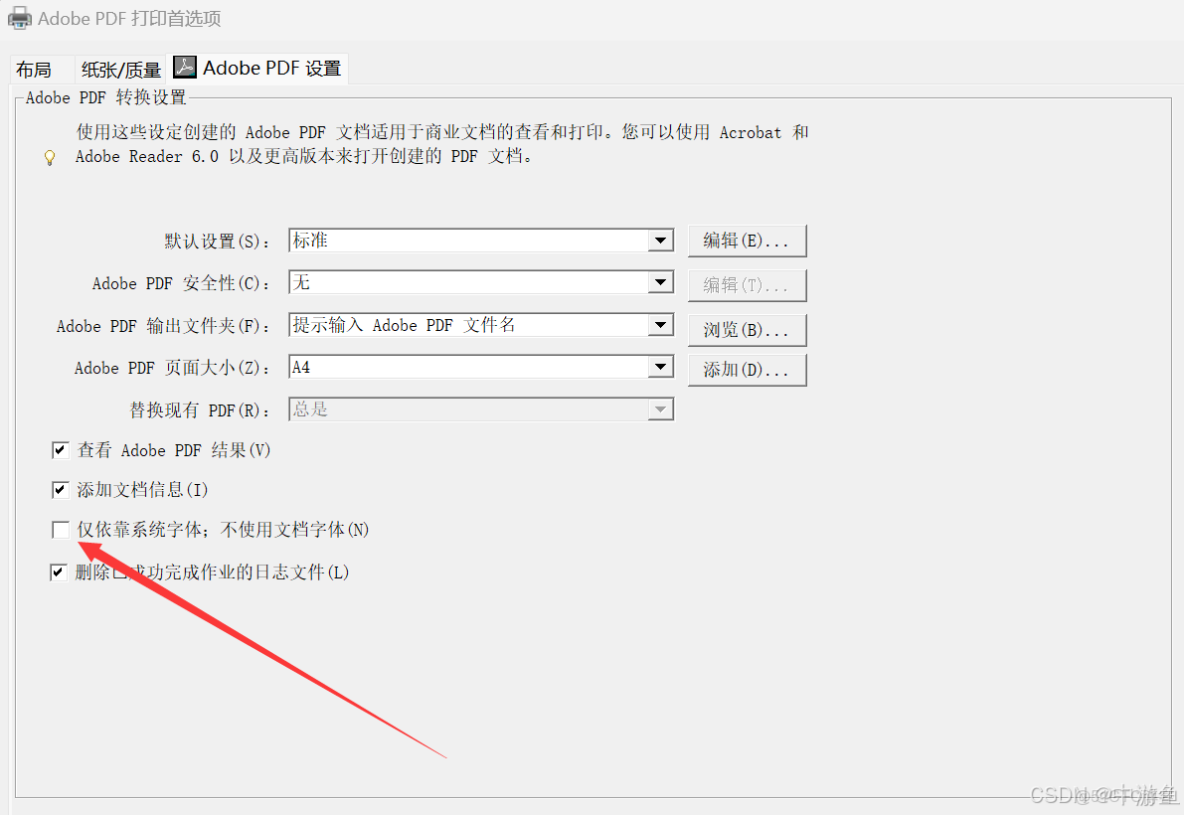
通過程序修改註冊表可以取消勾選僅依靠系統字體;不使用文檔字體
信息位置:\HKEY_CURRENT_USER\Printers\DevModePerUser\Adobe PDF
主鍵:HKEY_CURRENT_USER
子健:Printers\DevModePerUser
鍵名:Adobe PDF
鍵值:二進制 Binary 第 1164 個數設置為 0
SubKey = "Printers\\DevModePerUser\\";
      object AdobePDFobject = null;
      PdfRegKey(RegDomain.CurrentUser, SubKey, "Adobe PDF", ref AdobePDFobject, RegValueKind.Binary);//讀註冊表

      byte[] AdobePDFArray = (byte[])AdobePDFobject;
      AdobePDFArray[1164] = 0;
      AdobePDFobject = AdobePDFArray;

      PdfRegKey(RegDomain.CurrentUser, SubKey, "Adobe PDF", ref AdobePDFobject, RegValueKind.Binary,true );//寫註冊表
該設置值寫入了很多地方:
- HKEY_LOCAL_MACHINE\SOFTWARE\Microsoft\Windows NT\CurrentVersion\Print\Printers\Adobe PDF\PrinterDriverData\DistillerHostFontHasMostFonts
- HKEY_LOCAL_MACHINE\SOFTWARE\Wow6432Node\Microsoft\Windows NT\CurrentVersion\Print\Printers\Adobe PDF\PrinterDriverData\DistillerHostFontHasMostFonts
- HKEY_LOCAL_MACHINE\SYSTEM\ControlSet001\Control\Print\Printers\Adobe PDF\PrinterDriverData\DistillerHostFontHasMostFonts
- HKEY_LOCAL_MACHINE\SYSTEM\CurrentControlSet\Control\Print\Printers\Adobe PDF\PrinterDriverData\DistillerHostFontHasMostFonts
- HKEY_CURRENT_USER\Printers\DevModePerUser\Adobe PDF
- HKEY_CURRENT_USER\Printers\DevModes2\Adobe PDF
只有使用用户權限修改 HKEY_CURRENT_USER\Printers\DevModePerUser\Adobe PDF 即可。
3、PS 轉換為 PDF 默認彈出安全性確定

可以運行 Acrobat Distiller 勾選信任通過所有文件:
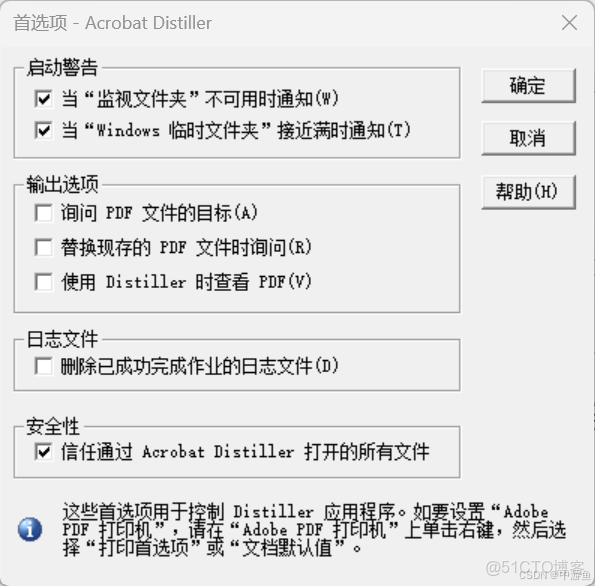
通過程序修改註冊表可以勾選信任通過所有文件:
SubKey = "Software\\Adobe\\Acrobat Distiller\\DC\\Preferences\\";  //通過所有輸入文件的安全性,不彈出安全性對話框
  object bTrustAllFiles =new byte[] {0};
  PdfRegKey(RegDomain.CurrentUser, SubKey, "bTrustAllFiles", ref bTrustAllFiles, RegValueKind.Binary, true);
4.4、整理後的完整靜態函數:
引用 COM 類庫 Acrobat Distiller 後,在模塊進行如下聲明:
using System;
using System.IO;
using System.Runtime.InteropServices;
using ACRODISTXLib;
4.4.1、Adobe PS 轉換為 PDF 函數過程:
/// <summary>Adobe PS 轉換為 PDF</summary>
        /// <param name="PSFile">輸入PS文件</param>
        public static void PSConvertToPDF(string PSFile)
        {
            try
            {
                Process[] processes = Process.GetProcessesByName("acrodist");
                foreach (Process process in processes)
                {
                    process.Kill();
                }
            }
            catch (Exception ex)
            {
                Console.WriteLine("無法關閉進程:" + ex.Message);
            }

            System.Threading.Thread.Sleep(100);
            PdfDistiller PdfDistiller =null;
            try
            {
                if (File.Exists(PSFile))
                {
                    string PDFFile = Path.GetDirectoryName(PSFile) + "\\" + Path.GetFileNameWithoutExtension(PSFile) + ".PDF";
                    PdfDistiller = new PdfDistiller
                    {
                        bShowWindow = 0
                    };
                    short Info = PdfDistiller.FileToPDF(PSFile, PDFFile, "Standard");
                    switch (Info)
                    {
                        case -1:
                            MessageBox.Show($"PS創建轉換PDF失敗!", "錯誤", MessageBoxButtons.OK, MessageBoxIcon.Error);
                            break;
                        case 0:
                            MessageBox.Show($"PS創建轉換PDF參數無效!", "錯誤", MessageBoxButtons.OK, MessageBoxIcon.Error);
                            break;
                        case 1:
                            if (File.Exists(PDFFile))
                            {
                                String LOGFile = PSFile.Replace(".PS", ".LOG");
                                File.Delete(PSFile);
                                File.Delete(LOGFile);
                                MessageBox.Show($"PDF文件已成功保存到:\r\n\r\n{PDFFile}", "導出成功", MessageBoxButtons.OK, MessageBoxIcon.Information);
                            }
                            break;
                        default:
                            MessageBox.Show($"PS創建轉換PDF其它錯誤!", "錯誤", MessageBoxButtons.OK, MessageBoxIcon.Error);
                            break;
                    }
                    Marshal.ReleaseComObject(PdfDistiller);
                    PdfDistiller = null;
                }
            }
            catch (Exception ex)
            {
                MessageBox.Show($"Adobe Distiller 初始化失敗: \r\n沒有安裝 Adobe Acrobat Pro ?\r\n{ex.Message}\r\n{ex.StackTrace}", "錯誤", MessageBoxButtons.OK, MessageBoxIcon.Error);
            }
            finally
            {
                // 確保PdfDistiller被正確關閉和釋放
                if (PdfDistiller != null)
                {
                    try
                    {
                        // 釋放COM對象資源
                        Marshal.ReleaseComObject(PdfDistiller);
                        PdfDistiller = null;
                    }
                    catch (Exception disposeEx)
                    {
                        Console.WriteLine($"釋放資源時出現錯誤:{disposeEx.Message}");
                    }
                }
            }

        }
4.4.2、Adobe Acrobat Pro 虛擬打印機註冊表設置
/// <summary>Adobe 虛擬打印機註冊表設置</summary>
        public static void AdobeRegRW()
        {
            object AdobePDFobject = null;
            string SubKey = "Printers\\DevModePerUser\\";
            RegKey(RegDomain.CurrentUser, SubKey, "Adobe PDF", ref AdobePDFobject, RegValueKind.Binary);//讀註冊表二進制值

            byte[] AdobePDFArray = (byte[])AdobePDFobject;
            AdobePDFArray[1164] = 0;//修改二進制值設置
            AdobePDFobject = AdobePDFArray;

            RegKey(RegDomain.CurrentUser, SubKey, "Adobe PDF", ref AdobePDFobject, RegValueKind.Binary, true);//寫取消勾選僅依靠系統字體;不使用文檔字體

            SubKey = "Software\\Adobe\\Acrobat Distiller\\DC\\Preferences\\";

            object bTrustAllFiles = new byte[] { 1 };
            RegKey(RegDomain.CurrentUser, SubKey, "bTrustAllFiles", ref bTrustAllFiles, RegValueKind.Binary, true);//通過所有輸入文件的安全性,不彈出安全性對話框
        }
以上針對 Adobo Acrobat Pro 2023 版本。
