

一、動畫曲線概述
動畫曲線是屬性關於時間的變化函數,決定屬性變化時產生動畫的運動軌跡。某一時刻下動畫曲線的斜率代表動畫的速度,對應屬性變化的快慢。一條優秀的動畫曲線具備連續光滑、符合用户意圖、符合物理世界客觀規律的特點。開發者可結合用户的使用場景和意圖,為動效選取合適的動畫曲線。
根據動畫曲線是否符合物理世界客觀規律,可將其分為物理曲線(ArkUI當前提供了多種物理彈簧曲線)和傳統曲線兩種類型。相比於傳統曲線,物理曲線產生的運動軌跡更加符合用户認知,有助於創造自然生動的動畫效果,建議開發者優先使用物理曲線。
二、傳統曲線簡介
傳統曲線基於數學公式,創造形狀符合開發者預期的動畫曲線。以三階貝塞爾曲線為代表,通過調整曲線控制點,可以改變曲線形狀,從而帶來緩入、緩出等動畫效果。對於同一條傳統曲線,由於不具備物理含義,其形狀不會因為用户行為發生任何改變,缺少物理動畫的自然感和生動感。建議優先採用物理曲線創建動畫,將傳統曲線作為輔助用於極少數必要場景中。
ArkUI提供了貝塞爾曲線、階梯曲線等傳統曲線接口,開發者可參照插值計算進行查閲。
傳統曲線的示例和效果如下:效果圖
示例代碼
class MyCurve {
  public title: string;
  public curve: Curve;
  public color: Color | string;

  constructor(title: string, curve: Curve, color: Color | string = '') {
    this.title = title;
    this.curve = curve;
    this.color = color;
  }
}

const myCurves: MyCurve[] = [
  new MyCurve(' Linear', Curve.Linear, '#317AF7'),
  new MyCurve(' Ease', Curve.Ease, '#D94838'),
  new MyCurve(' EaseIn', Curve.EaseIn, '#DB6B42'),
  new MyCurve(' EaseOut', Curve.EaseOut, '#5BA854'),
  new MyCurve(' EaseInOut', Curve.EaseInOut, '#317AF7'),
  new MyCurve(' FastOutSlowIn', Curve.FastOutSlowIn, '#D94838')
]

@Entry
@Component
struct CurveDemo {
  @State dRotate: number = 0; // 旋轉角度

  build() {
    Column() {
      // 曲線圖例
      Grid() {
        ForEach(myCurves, (item: MyCurve) => {
          GridItem() {
            Column() {
              Row()
                .width(30)
                .height(30)
                .borderRadius(15)
                .backgroundColor(item.color)
              Text(item.title)
                .fontSize(15)
                .fontColor(0x909399)
            }
            .width('100%')
          }
        })
      }
      .columnsTemplate('1fr 1fr 1fr')
      .rowsTemplate('1fr 1fr 1fr 1fr 1fr')
      .padding(10)
      .width('100%')
      .height(300)
      .margin({ top: 50 })

      Stack() {
        // 擺動管道
        Row()
          .width(290)
          .height(290)
          .border({
            width: 15,
            color: 0xE6E8EB,
            radius: 145
          })

        ForEach(myCurves, (item: MyCurve) => {
          // 小球
          Column() {
            Row()
              .width(30)
              .height(30)
              .borderRadius(15)
              .backgroundColor(item.color)
          }
          .width(20)
          .height(300)
          .rotate({ angle: this.dRotate })
          .animation({
            duration: 2000,
            iterations: -1,
            curve: item.curve,
            delay: 100
          })
        })
      }
      .width('100%')
      .height(200)
      .onClick(() => {
        this.dRotate ? null : this.dRotate = 360;
      })
    }
    .width('100%')
  }
}
三、彈簧曲線簡介
阻尼彈簧曲線(以下簡稱彈簧曲線)對應的阻尼彈簧系統中,偏離平衡位置的物體一方面受到彈簧形變產生的反向作用力,被迫發生振動。另一方面,阻尼的存在為物體振動提供阻力。除阻尼為0的特殊情況,物體在振動過程中振幅不斷減小,且最終趨於0,其軌跡對應的動畫曲線自然連續。
採用彈簧曲線的動畫在達終點時動畫速度為0,不會產生動畫“戛然而止”的觀感,以避免影響用户體驗。ArkUI提供了四種阻尼彈簧曲線接口。
- curves.springMotion:創建彈性動畫,動畫時長由曲線參數、屬性變化值大小和彈簧初速度自動計算,開發者指定的動畫時長不生效。
springMotion不提供速度設置接口,速度通過繼承獲得,無需開發者指定。對於某個屬性,如果當前存在正在運行的springMotion或者responsiveSpringMotion類型動畫,新創建的彈簧動畫將停止正在運行的動畫,並繼承其當前時刻的動畫屬性值和速度作為新建動畫的初始狀態。此外,接口提供默認參數,便於開發者直接使用。
function springMotion(response?: number, dampingFraction?: number, overlapDuration?: number): ICurve;
- curves.responsiveSpringMotion:是springMotion動畫的一種特例,僅默認參數不同。一般用於跟手做成動畫的場景,離手時可用springMotion創建動畫,此時離手階段動畫將自動繼承跟手階段動畫速度,完成動畫銜接。
當新動畫的overlapDuration參數不為0,且當前屬性的上一個springMotion動畫還未結束時,response和dampingFraction將在overlapDuration指定的時間內,從舊動畫的參數值過渡到新動畫的參數值。
function responsiveSpringMotion(response?: number, dampingFraction?: number, overlapDuration?: number): ICurve;
- curves.interpolatingSpring:適合於需要指定初速度的動效場景,動畫時長同樣由接口參數自動計算,開發者在動畫接口中指定的時長不生效。
曲線接口提供速度入參,且由於接口對應一條從0到1的阻尼彈簧曲線,實際動畫值根據曲線進行插值計算。所以速度也應該為歸一化速度,其值等於動畫屬性改變的絕對速度除以動畫屬性改變量。因此不適合於動畫起點屬性值和終點屬性值相同的場景,此時動畫屬性改變量為0,歸一化速度不存在。
function interpolatingSpring(velocity: number, mass: number, stiffness: number, damping: number): ICurve;
- curves.springCurve:適合於需要直接指定動畫時長的場景。springCurve接口與interpolatingSpring接口幾乎一致,但是對於採用springCurve的動畫,會將曲線的物理時長映射到指定的時長,相當於在時間軸上拉伸或壓縮曲線,破壞曲線原本的物理規律,因此不建議開發者使用。
function springCurve(velocity: number, mass: number, stiffness: number, damping: number): ICurve;關於彈簧曲線完整的使用示例和參考效果如下,開發者也可參考動畫銜接,掌握使用responsiveSpringMotion和springMotion進行手勢和動畫之間的銜接。
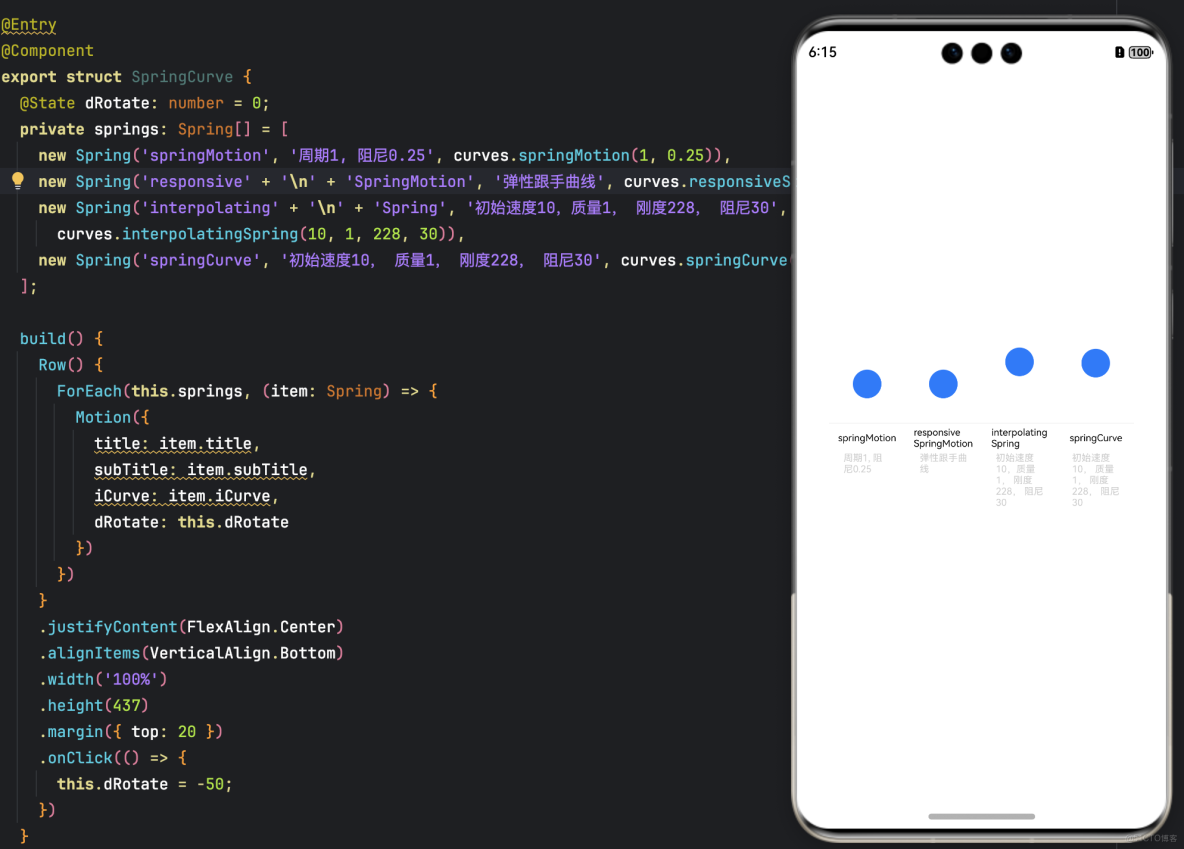
彈簧曲線的示例代碼和效果如下。效果圖
示例代碼
import { curves } from '@kit.ArkUI';

class Spring {
  public title: string;
  public subTitle: string;
  public iCurve: ICurve;

  constructor(title: string, subTitle: string, iCurve: ICurve) {
    this.title = title;
    this.iCurve = iCurve;
    this.subTitle = subTitle;
  }
}

// 彈簧組件
@Component
struct Motion {
  @Prop dRotate: number = 0
  private title: string = ""
  private subTitle: string = ""
  private iCurve: ICurve | undefined = undefined

  build() {
    Column() {
      Circle()
        .translate({ y: this.dRotate })
        .animation({ curve: this.iCurve, iterations: -1 })
        .foregroundColor('#317AF7')
        .width(30)
        .height(30)

      Column() {
        Text(this.title)
          .fontColor(Color.Black)
          .fontSize(10).height(30)
        Text(this.subTitle)
          .fontColor(0xcccccc)
          .fontSize(10).width(50)
      }
      .borderWidth({ top: 1 })
      .borderColor(0xf5f5f5)
      .width(80)
      .alignItems(HorizontalAlign.Center)
      .height(100)

    }
    .height(110)
    .margin({ bottom: 5 })
    .alignItems(HorizontalAlign.Center)
  }
}

@Entry
@Component
export struct SpringCurve {
  @State dRotate: number = 0;
  private springs: Spring[] = [
    new Spring('springMotion', '週期1, 阻尼0.25', curves.springMotion(1, 0.25)),
    new Spring('responsive' + '\n' + 'SpringMotion', '彈性跟手曲線', curves.responsiveSpringMotion(1, 0.25)),
    new Spring('interpolating' + '\n' + 'Spring', '初始速度10,質量1, 剛度228, 阻尼30',
      curves.interpolatingSpring(10, 1, 228, 30)),
    new Spring('springCurve', '初始速度10, 質量1, 剛度228, 阻尼30', curves.springCurve(10, 1, 228, 30))
  ];

  build() {
    Row() {
      ForEach(this.springs, (item: Spring) => {
        Motion({
          title: item.title,
          subTitle: item.subTitle,
          iCurve: item.iCurve,
          dRotate: this.dRotate
        })
      })
    }
    .justifyContent(FlexAlign.Center)
    .alignItems(VerticalAlign.Bottom)
    .width('100%')
    .height(437)
    .margin({ top: 20 })
    .onClick(() => {
      this.dRotate = -50;
    })
  }
}